QuickBooks Sync (Procore Invoice Mirroring)
Last updated: April 10, 2026
Overview
If your company creates and approves invoices directly in Procore but also needs those invoices in QuickBooks, you can enable Procore invoice mirroring. When turned on, invoices that are created and approved in Procore are automatically imported into inBuild so they can be synced to QuickBooks.
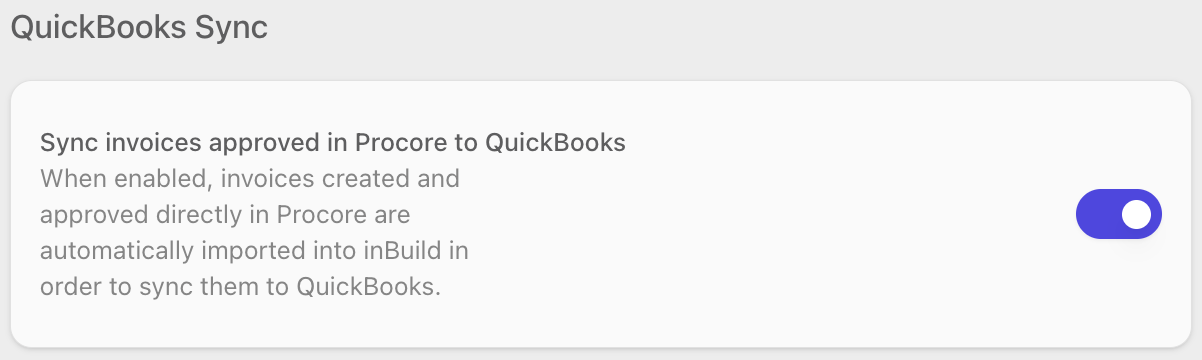
This setting is designed for teams that process some invoices through inBuild and others directly in Procore, but want all of them to flow through to QuickBooks for accounting.
This section only appears on the Procore Settings page when your company has an active QuickBooks Online (QBO) or QuickBooks Desktop (QBD) integration. If you do not see the QuickBooks Sync section, confirm that a QuickBooks integration has been connected in your accounting settings.
Enabling Procore Invoice Mirroring
Only company admins can change this setting. If the toggle is grayed out, contact a company admin to update it on your behalf.
Navigate to Settings → Procore.
Scroll down to the QuickBooks Sync section.
Toggle Sync invoices approved in Procore to QuickBooks to the on position.
Once enabled, invoices that are created and approved directly in Procore will automatically be imported into inBuild. From there, they follow the same sync process to QuickBooks as any other invoice in inBuild.
Disabling Procore Invoice Mirroring
Navigate to Settings → Procore.
Scroll down to the QuickBooks Sync section.
Toggle Sync invoices approved in Procore to QuickBooks to the off position.
New invoices approved in Procore will no longer be imported into inBuild. Invoices that were already imported before you turned this off are not affected — they remain in inBuild and will continue syncing to QuickBooks as usual.
Frequently Asked Questions
Why don't I see the QuickBooks Sync section on my Procore Settings page?
The QuickBooks Sync section only appears when your company has at least one active QuickBooks Online (QBO) or QuickBooks Desktop (QBD) integration connected in inBuild. If you haven't set up a QuickBooks integration yet, this section will not be visible. Connect your QuickBooks account first, then return to the Procore Settings page.
The toggle is grayed out and I can't change it. What do I do?
All settings on the Procore Settings page require company admin permissions. If the toggle is disabled, you do not have admin access. Ask a company admin to enable or disable this setting for you.
Which invoices get imported — all invoices in Procore, or only approved ones?
Only invoices that are both created and approved directly in Procore are automatically imported into inBuild. Invoices that are still in draft or under review in Procore are not imported until they reach an approved status.
Does this affect invoices I process through inBuild?
No. Invoices you upload and process through inBuild continue to work the same way. This setting adds an additional path: invoices approved directly in Procore are also pulled into inBuild so they can sync to QuickBooks alongside your other invoices.
What happens if I turn this setting off?
New Procore-approved invoices will stop being imported into inBuild. Any invoices that were already imported before the setting was turned off remain in inBuild and will still sync to QuickBooks as expected.