Invoice Settings
Last updated: April 10, 2026
Overview
The Invoice Settings section on the Procore Settings page controls how inBuild processes and syncs invoice documents to Procore. You can enable or disable invoice processing entirely, choose which types of invoices inBuild should handle, and set the default Procore status that each invoice type receives when it is synced.
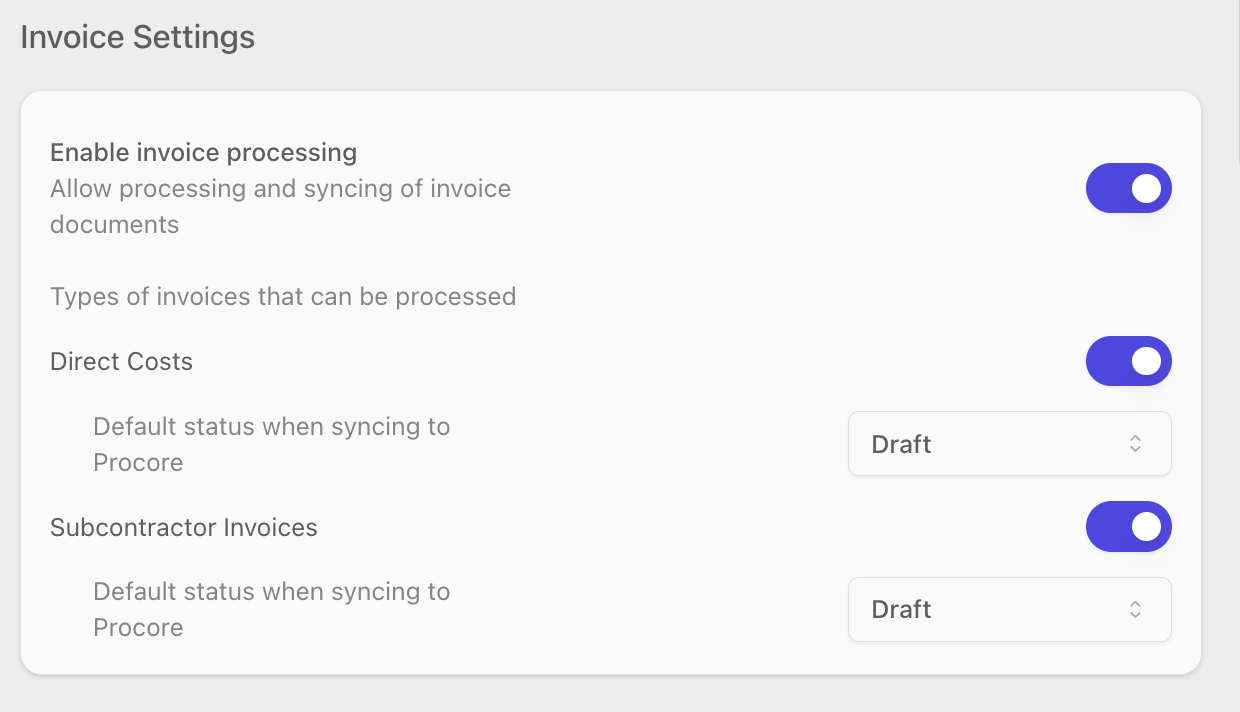
Only company admins can change Invoice Settings. If you are not a Procore company admin, the toggles and dropdowns on this page will be visible but disabled.
Enable or Disable Invoice Processing
The Enable invoice processing toggle controls whether inBuild processes and syncs any invoice documents at all. When this is turned off, no invoices of any type will be processed or sent to Procore.
Navigate to Settings → Procore.
Locate the Invoice Settings section.
Toggle Enable invoice processing on or off.
When you turn this toggle on, additional settings for invoice types and their default sync statuses will appear below it.
Choose Which Invoice Types to Process
When invoice processing is enabled, you can control which types of invoices inBuild handles. There are two invoice types:
Direct Costs — non-commitment expenses entered as direct cost invoices in Procore.
Subcontractor Invoices — pay applications tied to a subcontractor commitment in Procore.
Both types are enabled by default. You can turn either one off, but at least one invoice type must remain enabled at all times. If only one type is active, its toggle will be disabled to prevent you from turning off all processing.
Navigate to Settings → Procore.
Confirm that Enable invoice processing is toggled on.
Toggle Direct Costs on or off to enable or disable direct cost invoice processing.
Toggle Subcontractor Invoices on or off to enable or disable subcontractor invoice processing.
If your company only works with one type of invoice, turn off the type you don't use. This prevents inBuild from attempting to classify invoices into a category you don't need.
Set Default Sync Statuses
When inBuild syncs an invoice to Procore, it assigns a status to the invoice in Procore. You can choose the default status for each invoice type. This determines the state the invoice will be in when it first appears in Procore.
Direct Cost Default Status
This dropdown appears when the Direct Costs toggle is enabled. The available statuses are:
Draft (default) — the invoice is created in Procore as a draft and requires further action before it is finalized.
Pending — the invoice is created in a pending state, awaiting review.
Approved — the invoice is created as already approved in Procore.
Navigate to Settings → Procore.
Confirm that Enable invoice processing and Direct Costs are both toggled on.
Locate the Default status when syncing to Procore dropdown beneath the Direct Costs toggle.
Select the status you want direct costs to receive when synced.
Subcontractor Invoice Default Status
This dropdown appears when the Subcontractor Invoices toggle is enabled. The available statuses are:
Draft — the invoice is created in Procore as a draft.
Under review (default) — the invoice is created in Procore in a review state.
Approved — the invoice is marked as approved in Procore.
Approved as noted — the invoice is approved with notes in Procore.
Pending owner approval — the invoice is waiting for the project owner's approval in Procore.
Navigate to Settings → Procore.
Confirm that Enable invoice processing and Subcontractor Invoices are both toggled on.
Locate the Default status when syncing to Procore dropdown beneath the Subcontractor Invoices toggle.
Select the status you want subcontractor invoices to receive when synced.
The default status you choose here applies to all future syncs. Invoices that have already been synced to Procore are not affected by this change.
Frequently Asked Questions
I don't see the Invoice Settings section on my Procore Settings page. Where is it?
The Invoice Settings section is only visible when your company has the direct costs feature enabled. If you don't see it, contact inBuild support to confirm whether this feature is available for your account.
Can I turn off both Direct Costs and Subcontractor Invoices at the same time?
No. At least one invoice type must remain enabled while invoice processing is active. If you want to stop all invoice processing, turn off the Enable invoice processing toggle instead.
The toggles and dropdowns are grayed out. How do I change these settings?
Only Procore company admins can modify Invoice Settings. Ask a company admin to make the changes for you, or contact your organization's administrator to request admin access.
Will changing the default sync status affect invoices I've already synced?
No. The default sync status only applies to invoices synced after the change. Previously synced invoices retain whatever status they were given at the time of sync.
What happens if I disable invoice processing while invoices are being processed?
Turning off Enable invoice processing prevents new invoices from being processed and synced going forward. It does not affect invoices that have already been synced to Procore.