Procore Settings Overview
Last updated: April 10, 2026
Overview
The Procore Settings page lets you control how inBuild processes invoices and commitments, how data syncs to Procore, and how the AI extracts information from your documents. You can also manage which projects are active and configure default assignees for each project.
Only Procore company admins can change settings on this page. If you are not an admin, you can view all settings but the controls will be disabled.
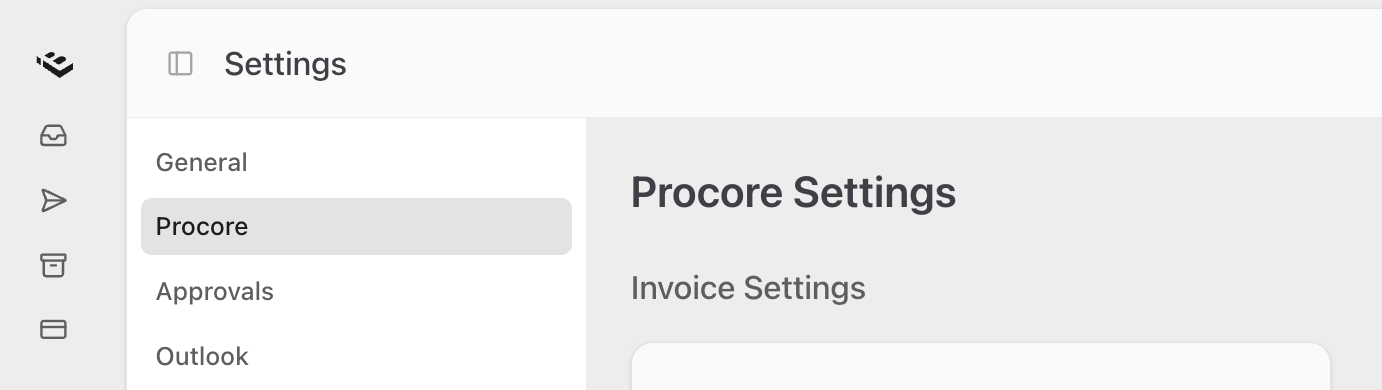
To open the Procore Settings page:
Click Settings in the navigation menu.
Select the Procore tab.
The page is organized into the following sections. Each setting takes effect immediately when you change it — there is no separate save step.
Procore Settings Page Sections
📄 Invoice File Naming Convention
📄 QuickBooks Sync — Procore Invoice Mirroring
Frequently Asked Questions
Why are all the toggles and dropdowns grayed out?
Only Procore company admins can change settings on this page. If the controls are disabled, your account does not have admin permissions. Contact your company's Procore admin to request access or to have them make the change for you.
I don't see the Invoice Settings section. Where is it?
The Invoice Settings section is only visible when the direct costs feature is enabled for your company. If you don't see it, reach out to inBuild support to check whether this feature is available for your account.
I don't see the QuickBooks Sync section. Where is it?
The QuickBooks Sync section only appears when your company has an active QuickBooks Online or QuickBooks Desktop integration connected to inBuild. If you have not set up a QuickBooks integration yet, this section will not be visible.
I can't enable "Sync invoices to Procore Documents." What's wrong?
You must select a Default folder for invoice documents before enabling the toggle. Choose a folder from the dropdown first, then turn the toggle on.
I can't turn off the last remaining invoice type. Why?
When invoice processing is enabled, at least one invoice type (Direct Costs or Subcontractor Invoices) must remain active. If you need to disable all invoice processing, turn off the main Enable invoice processing toggle instead.
What happens when I deactivate a project?
The AI will no longer consider that project when matching and processing invoices. The project is not removed from Procore — it is only excluded from inBuild's AI processing. You can reactivate it at any time by toggling it back on.
What is the difference between "Allow overbilling on line items" and "Allow AI to overbill"?
Allow overbilling on line items controls whether users can manually enter amounts that exceed the scheduled value when reviewing an invoice in inBuild. Allow AI to overbill controls whether the AI extracts amounts as-is from the document or caps them at the remaining balance. These settings are independent — you can configure them separately based on your workflow.
I don't see the Default Label column in the Active Projects table. How do I enable it?
The Default Label column only appears when invoice labels are enabled for your company. Contact inBuild support to have this feature turned on.
Do I need to click a Save button after changing settings?
No. All settings on this page save automatically as soon as you change them. There is no separate save step.