Commitment Settings
Last updated: April 10, 2026
Overview
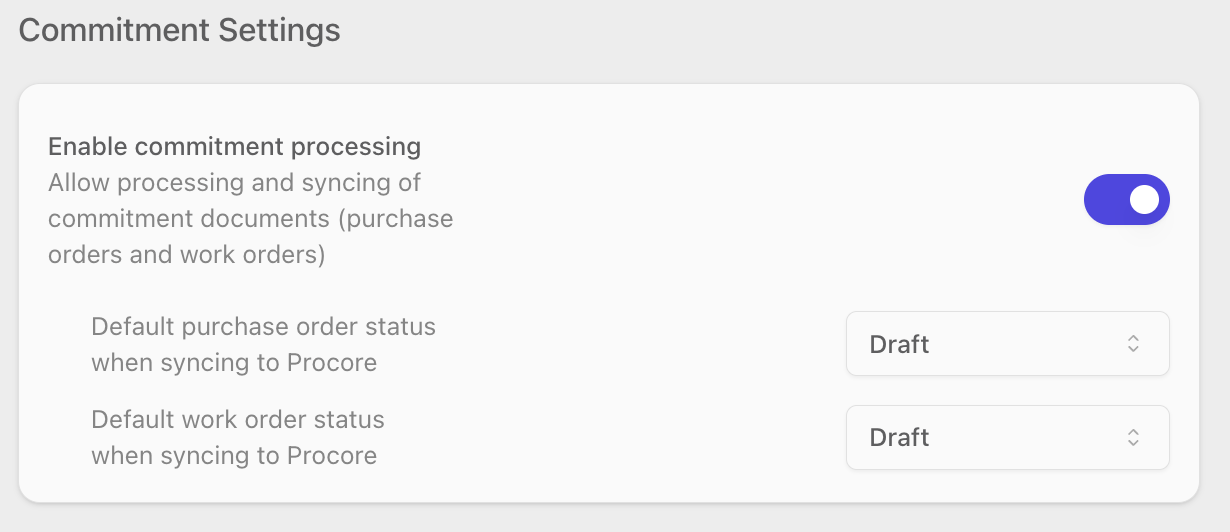
The Commitment Settings section on the Procore Settings page controls whether inBuild can process and sync commitment documents — purchase orders and work orders — to Procore. When commitment processing is enabled, you can also set the default status that each commitment type will have when it lands in Procore.
Only Procore company admins can change these settings. If you are not an admin, the toggles and dropdowns on this page will be visible but disabled.
Enable Commitment Processing
The Enable commitment processing toggle controls whether inBuild can process and sync commitment documents (purchase orders and work orders) to Procore. When this toggle is off, inBuild will not process any commitment documents, and the default status dropdowns below will be hidden.
Navigate to Settings → Procore.
Scroll to the Commitment Settings section.
Toggle Enable commitment processing on or off.
When you turn this toggle on, two additional dropdowns appear that let you configure default sync statuses for purchase orders and work orders.
Default Purchase Order Status
The Default purchase order status when syncing to Procore dropdown determines the status that new purchase orders will be assigned when inBuild syncs them to Procore. This dropdown only appears when Enable commitment processing is turned on.
Turn on Enable commitment processing if it is not already enabled.
Locate the Default purchase order status when syncing to Procore dropdown.
Select one of the following statuses:
Draft — the purchase order is created as a draft in Procore (this is the default).
Processing — the purchase order is marked as currently being processed.
Submitted — the purchase order is marked as submitted.
Partially Received — the purchase order is marked as partially received.
Received — the purchase order is marked as fully received.
Approved — the purchase order is marked as approved.
Closed — the purchase order is marked as closed.
Your selection is saved automatically.
Default Work Order Status
The Default work order status when syncing to Procore dropdown determines the status that new work orders will be assigned when inBuild syncs them to Procore. This dropdown only appears when Enable commitment processing is turned on.
Turn on Enable commitment processing if it is not already enabled.
Locate the Default work order status when syncing to Procore dropdown.
Select one of the following statuses:
Draft — the work order is created as a draft in Procore (this is the default).
Out For Bid — the work order is marked as out for bid.
Out For Signature — the work order is marked as out for signature.
Approved — the work order is marked as approved.
Complete — the work order is marked as complete.
Terminated — the work order is marked as terminated.
Void — the work order is marked as void.
Your selection is saved automatically.
Frequently Asked Questions
Why are the toggles and dropdowns grayed out?
Only users with the Procore company admin role can modify Commitment Settings. If you are not an admin, you can view the current settings but cannot change them. Contact your company admin to request changes.
Why don't I see the purchase order and work order status dropdowns?
The default status dropdowns only appear when Enable commitment processing is turned on. Toggle it on to reveal the status options for both purchase orders and work orders.
Can I set different default statuses for purchase orders and work orders?
Yes. Purchase orders and work orders each have their own separate status dropdown. You can configure them independently — for example, you could set purchase orders to sync as Draft while work orders sync as Approved.
What happens to commitments already synced if I change the default status?
Changing the default status only affects commitments that are synced to Procore after the change. Commitments that were previously synced retain the status they were synced with.
What happens if I turn off commitment processing?
Turning off Enable commitment processing prevents inBuild from processing and syncing any new commitment documents. Your previously configured default status selections are preserved and will reappear if you re-enable the setting later.