Active Projects
Last updated: April 10, 2026
Overview
The Active Projects section on the Procore Settings page controls which of your Procore projects inBuild's AI considers when processing invoices. If a project is not marked as active, inBuild will not attempt to match incoming invoices to that project. You can also configure a default assignee (and optionally a default label) for each project so that new invoices matched to that project are automatically routed to the right person.
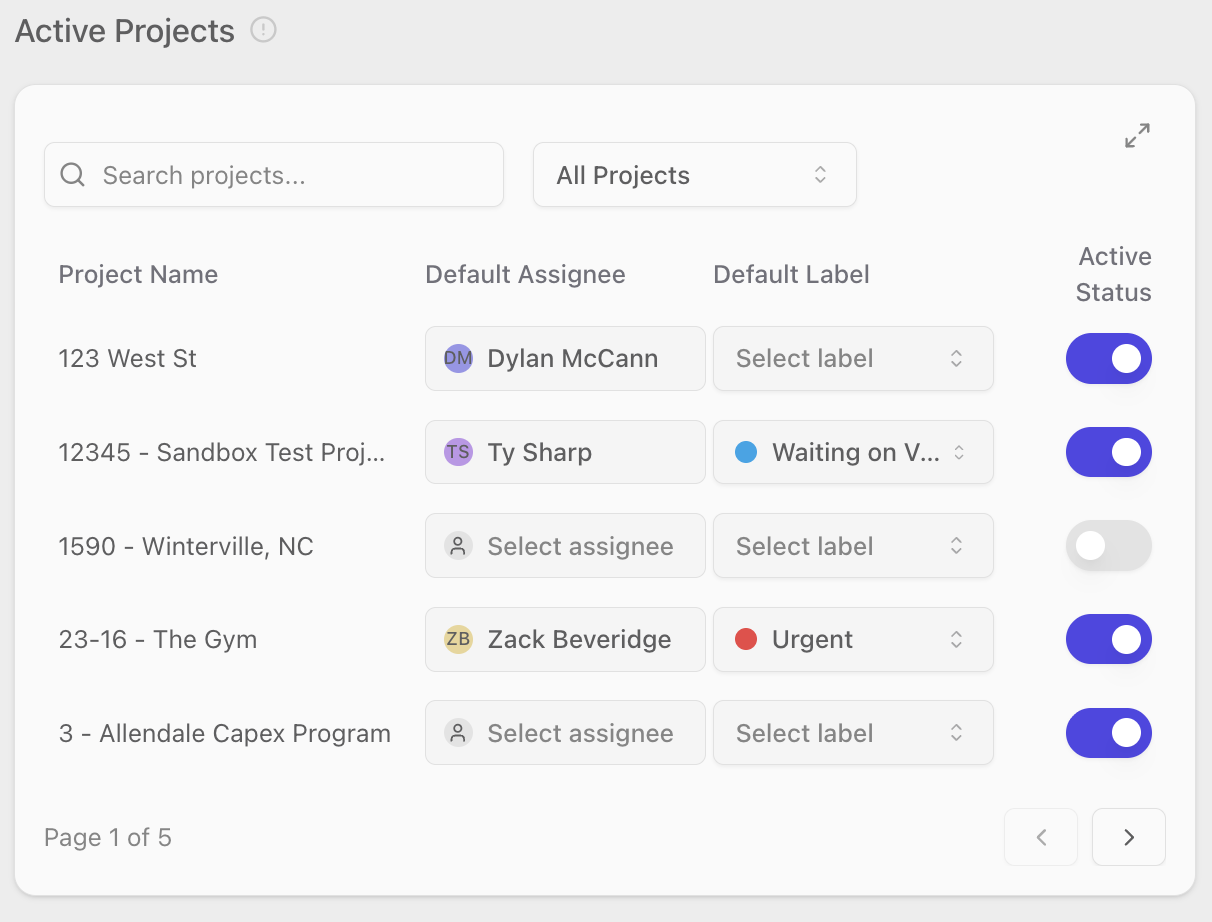
Only users with the Procore Company Admin role can change project active status, default assignees, or default labels. Non-admin users can view the table but all controls will be disabled.
Activating or Deactivating a Project
Marking a project as active tells inBuild's AI to include it when determining which project an incoming invoice belongs to. Deactivating a project excludes it from AI processing but does not delete any data.
Navigate to Settings → Procore.
Scroll down to the Active Projects section.
Locate the project you want to update. Use the Search projects... field to filter by name if needed.
Toggle the Active Status switch in that project's row. A purple switch means the project is active; a gray switch means it is inactive.
Changes are saved automatically — there is no separate save button.
Filtering the Project List
You can narrow down the list of projects using the search field and the status filter.
Enter a project name in the Search projects... field to filter by name.
Open the filter dropdown next to the search field and choose one of the following options:
All Projects — shows every project in your Procore company.
Active Only — shows only projects that are currently active in inBuild.
Inactive Only — shows only projects that are currently inactive in inBuild.
Setting a Default Assignee for a Project
A default assignee is the team member who will automatically be assigned to new invoices matched to a given project. This saves you from manually assigning invoices after they are processed.
Navigate to Settings → Procore and scroll to Active Projects.
Locate the project you want to configure.
Click the Default Assignee dropdown in that project's row.
Select a user from the list. To remove a previously set assignee, select the None option.
Setting a Default Label for a Project
If your company has invoice labels enabled, a Default Label column appears in the table. A default label is automatically applied to new invoices matched to that project.
Navigate to Settings → Procore and scroll to Active Projects.
Locate the project you want to configure.
Click the Default Label dropdown in that project's row.
Select a label from the list. Each label displays its color and name. To remove a previously set label, select No label.
The Default Label column only appears if invoice labels have been enabled for your company. If you do not see this column, contact your company admin to enable it.
Using the Expanded View
The compact table in the settings page shows five projects per page. For companies with many projects, the expanded view provides a larger table with more room to review and configure defaults.
Click the expand icon (double-arrow icon) in the top-right corner of the Active Projects card.
A full-screen Project Configuration dialog opens, showing ten projects per page.
Use the search field and filter dropdown at the top of the dialog to find specific projects.
Configure Default Assignee, Default Label, and Active Status the same way as in the compact view.
Close the dialog by clicking the X button or clicking outside the dialog. All changes are saved automatically.
Frequently Asked Questions
What happens if I deactivate a project that already has invoices in progress?
Deactivating a project only affects future AI processing. Existing invoices already matched to that project are not deleted or unlinked. However, new incoming invoices will no longer be matched to the deactivated project by the AI.
I don't see any projects in the table. What should I do?
The project list is pulled from your connected Procore account. If no projects appear, verify that your Procore integration is connected and that your Procore company has active projects. If the issue persists, contact inBuild support.
Why are the toggles and dropdowns grayed out?
Only users with the Procore Company Admin role can modify project settings. If the controls are disabled, ask a company admin to make the changes or to grant you admin access.
Why don't I see the Default Label column?
The Default Label column only appears when invoice labels are enabled for your company. This is a separate company-level setting. Contact your company admin to enable invoice labels if your team needs this feature.
Does the default assignee override a manually set assignee?
The default assignee is applied automatically when a new invoice is matched to the project. If you manually change the assignee on an individual invoice afterward, the manual assignment takes precedence.