AI Settings
Last updated: April 9, 2026
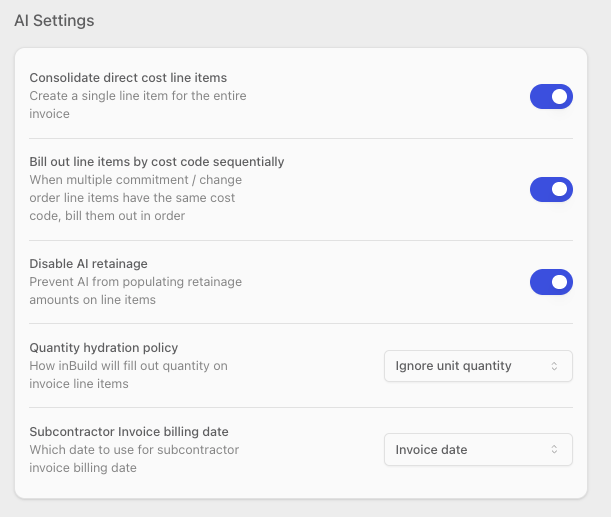
The AI Settings section on the Procore Settings page controls how inBuild's AI extracts and populates data from invoice documents. These settings let you fine-tune how line items, quantities, retainage, and billing dates are handled during automatic invoice processing.
To access these settings, navigate to Settings → Procore Settings and scroll to the AI Settings section.
Only users with the Procore Company Admin role can modify these settings. All other users can view the current values but cannot make changes.
Consolidate Direct Cost Line Items
The Consolidate direct cost line items toggle controls whether the AI creates multiple line items from an invoice or combines everything into a single line item.
Off (default): The AI extracts individual line items from the invoice document and creates a separate line item for each one.
On: The AI creates a single consolidated line item for the entire invoice total, regardless of how many line items appear on the document.
This setting is useful when you prefer to track direct cost invoices as a single entry rather than breaking them into multiple line items.
Navigate to Settings → Procore Settings.
Scroll to the AI Settings section.
Toggle Consolidate direct cost line items on or off.
Bill Out Line Items by Cost Code Sequentially
The Bill out line items by cost code sequentially toggle controls how inBuild handles situations where a commitment or change order has multiple line items that share the same cost code.
Off (default): When multiple line items share the same cost code, the AI distributes the billed amount across all matching line items.
On: The AI fills out matching line items in order — completing one line item before moving on to the next. This means the first line item with that cost code is billed up to its full value before any amount is applied to the second line item, and so on.
Navigate to Settings → Procore Settings.
Scroll to the AI Settings section.
Toggle Bill out line items by cost code sequentially on or off.
This setting is particularly helpful when your commitments have multiple line items under the same cost code that represent distinct phases or deliverables, and you want billing to reflect progress through each one in order.
Disable AI Retainage
The Disable AI retainage toggle controls whether the AI extracts and populates retainage amounts on invoice line items.
Off (default): The AI attempts to extract retainage amounts from the invoice document and populates them on line items automatically.
On: The AI does not extract or populate retainage amounts. Retainage fields are left empty and must be filled in manually if needed.
Enable this setting if your team prefers to manage retainage manually or if the AI is not accurately extracting retainage values from your invoices.
Navigate to Settings → Procore Settings.
Scroll to the AI Settings section.
Toggle Disable AI retainage on or off.
Quantity Hydration Policy
The Quantity hydration policy dropdown determines how inBuild populates the quantity field on invoice line items during AI processing.
Select one of the following options:
Ignore unit quantity (default) — inBuild does not populate a quantity value on line items. The quantity field is left empty.
Always set to 1 — inBuild sets the quantity to 1 for every line item, regardless of what appears on the invoice document.
Extract from document — inBuild uses AI to extract the quantity value directly from the invoice document. If the AI cannot determine a quantity, the field may be left empty.
Navigate to Settings → Procore Settings.
Scroll to the AI Settings section.
Open the Quantity hydration policy dropdown.
Select the option that matches how your team wants quantities handled.
If your Procore workflows require a quantity value on every line item, choose Always set to 1 to ensure the field is never left blank. Use Extract from document if your invoices contain reliable quantity data and you want to preserve it.
Subcontractor Invoice Billing Date
The Subcontractor Invoice billing date dropdown determines which date value is used as the billing date when syncing invoices to Procore.
Select one of the following options:
Date received on inBuild (default) — Uses the date the invoice was received or created in inBuild.
Invoice date — Uses the invoice date extracted from the document by the AI.
Due date — Uses the due date extracted from the document by the AI.
Navigate to Settings → Procore Settings.
Scroll to the AI Settings section.
Open the Subcontractor Invoice billing date dropdown.
Select the date source you want to use for billing dates on subcontractor invoices.
This setting only affects subcontractor invoices (pay applications). If your team relies on the invoice date or due date for billing period tracking in Procore, choose the corresponding option here. If the AI cannot extract the selected date from a document, the field may need to be filled in manually.
Frequently Asked Questions
Do AI Settings changes apply to invoices that have already been processed?
No. Changes to AI Settings only affect invoices that are processed after the settings are updated. Invoices that were already processed retain the data extracted under the previous settings.
I'm not a Procore Company Admin. Can I change these settings?
No. Only users with the Procore Company Admin role can modify AI Settings. If you need a change made, contact a Procore Company Admin at your company.
What does "Bill out line items by cost code sequentially" do if my line items have unique cost codes?
If every line item on a commitment has a unique cost code, this setting has no effect. It only changes behavior when multiple line items share the same cost code.
Can I use "Extract from document" for quantity and still correct values manually?
Yes. When the Quantity hydration policy is set to Extract from document, the AI populates the quantity field with values found on the invoice. You can review and edit these values manually before syncing to Procore.
What if the AI cannot extract a billing date or quantity from the document?
If the AI cannot find the relevant data on the invoice, the field is left empty. You will need to fill it in manually before syncing the invoice to Procore.