Document Settings
Last updated: April 10, 2026
Overview
The Document Settings section on the Procore Settings page lets you automatically upload invoice files to a folder in Procore Documents whenever you sync an invoice to Procore. This keeps a copy of every invoice PDF organized in a Procore Documents folder of your choosing, so your team can access them directly in Procore without needing to log into inBuild.
By default, this feature is turned off. When you enable it and select a folder, every invoice synced to Procore will also have its file uploaded to that folder automatically.
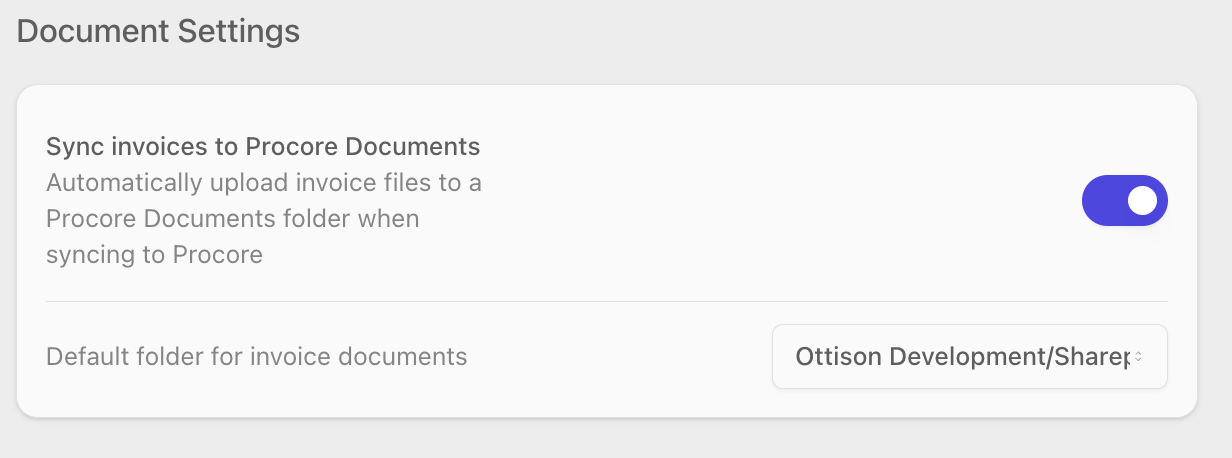
Only Procore company admins can change Document Settings. If the toggles and dropdowns appear grayed out, ask a company admin to update them for you.
Setting Up Invoice Document Sync
Before you can enable document sync, you need to choose which Procore Documents folder inBuild should upload files to. Follow these steps to configure the feature.
Navigate to Settings and open the Procore settings page.
Scroll down to the Document Settings section.
Click the Default folder for invoice documents dropdown. A list of folders from your Procore Documents library will appear.
Select the folder where you want invoice files to be uploaded.
Toggle Sync invoices to Procore Documents to the on position. The setting saves automatically.
You must select a default folder before enabling the toggle. If you try to turn on Sync invoices to Procore Documents without a folder selected, you will see an error message: "Select a default folder before enabling document sync."
Changing the Default Folder
You can change the destination folder at any time, even while document sync is enabled. Future syncs will upload to the newly selected folder.
Navigate to Settings → Procore and scroll to Document Settings.
Click the Default folder for invoice documents dropdown.
Select a different folder from the list. The change saves automatically.
The folder list is pulled from your Procore company-level Documents library and refreshes periodically. If you recently created a new folder in Procore and don't see it yet, wait a few minutes and reload the page.
Disabling Invoice Document Sync
If you no longer want invoice files uploaded to Procore Documents, you can turn the feature off.
Navigate to Settings → Procore and scroll to Document Settings.
Toggle Sync invoices to Procore Documents to the off position. The change saves automatically.
Turning off the toggle stops future uploads. Files that were already uploaded to Procore Documents remain in place — they are not deleted.
Frequently Asked Questions
Why is the toggle grayed out?
The Document Settings controls are only available to Procore company admins. If the toggle and dropdown are disabled, your account does not have admin permissions. Contact a company admin to make changes.
I don't see any folders in the dropdown. What should I do?
The dropdown is populated from your Procore company-level Documents library. If it shows "No folders found," check that your Procore company has at least one folder set up in the Documents tool. If you recently created a folder, wait a few minutes and reload the page — inBuild caches the folder list and refreshes it periodically.
Will turning off document sync delete files that were already uploaded?
No. Disabling the toggle only stops future uploads. Any invoice files that have already been synced to Procore Documents will remain in the folder.
Can I use a different folder for each project?
Not at this time. The default folder setting applies company-wide. All invoice documents from every project are uploaded to the same folder you select here.