Invoice File Naming Convention
Last updated: April 10, 2026
Overview
When inBuild syncs invoices to Procore, you can control how the synced files are named. By default, inBuild uses the original file name of each uploaded invoice. If you want a consistent naming pattern across all synced invoices, you can define a custom template using a combination of free text and dynamic variables.
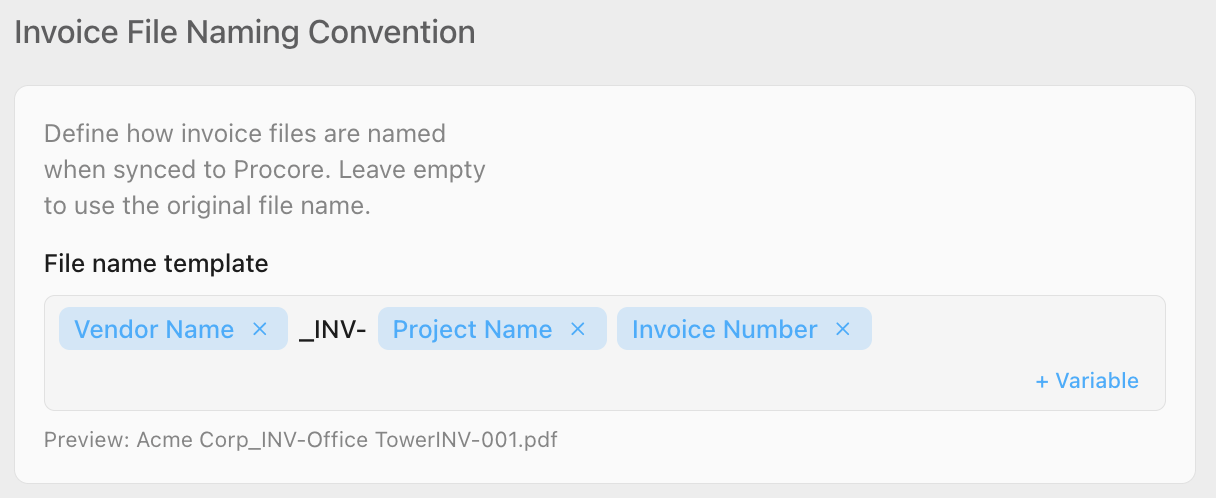
This setting is found on the Procore Settings page under the Invoice File Naming Convention section.
Only users with Procore Company Admin permissions can edit the file naming template. All other users can view the current template but cannot make changes.
How the File Name Template Works
The File name template field lets you build a naming pattern by combining plain text (such as separators or prefixes) with dynamic variables that are replaced with actual invoice data at sync time.
The following variables are available:
Vendor Name — The name of the vendor or subcontractor on the invoice.
Project Name — The name of the Procore project the invoice is associated with.
Invoice Number — The invoice number extracted from the document.
Invoice Date — The date on the invoice, formatted as YYYY-MM-DD.
Variables appear as styled tags inside the input field. Free text segments appear as editable inline text between the tags. When an invoice is synced to Procore, inBuild replaces each variable tag with the corresponding value and joins everything together to form the final file name.
If you leave the template empty, inBuild uses the original file name of the uploaded invoice document.
A Preview line appears below the template whenever it has content. This shows you an example of what a resulting file name will look like — for example: Acme Corp - Office Tower - INV-001 - 2024-01-15.pdf.
Setting Up a File Naming Convention
Navigate to Settings → Procore Settings.
Scroll down to the Invoice File Naming Convention section.
Click into the File name template field.
Type any free text you want to include, such as separators like
-or prefixes likeINV_.Click the + Variable button on the right side of the input field to open the list of available variables.
Select a variable from the list (e.g., Vendor Name). The variable appears as a tag inside the input field.
Continue adding text and variables until your template is complete.
Review the Preview line below the field to confirm the naming pattern looks correct.
Your changes are saved automatically — there is no save button to click. Updates are applied after a brief delay as you type.
Editing or Removing Parts of the Template
Click on any text segment in the template to edit it directly.
Click the × button on any variable tag to remove that variable from the template.
Press Backspace or Delete when the text cursor is at an empty position to remove the last segment (text or variable).
To reset the template and return to using original file names, remove all text and variable tags so the field is empty.
Frequently Asked Questions
What happens if I leave the template empty?
When the template is empty, inBuild uses the original file name of the uploaded invoice document when syncing to Procore. No renaming is applied.
Do I need to click a save button after editing the template?
No. Changes to the file name template are saved automatically after a brief delay as you type. There is no separate save button.
Does this naming convention apply to invoices that have already been synced?
No. The file naming convention applies only to invoices synced after the template is set. Previously synced invoices retain their original file names in Procore.
What file extension is used for the renamed files?
The original file extension (e.g., .pdf) is preserved automatically. You do not need to include a file extension in your template.
Can I use only variables without any free text?
Yes. You can build a template using only variable tags. For example, using just Vendor Name and Invoice Number would produce a file name like Acme CorpINV-001.pdf. Adding separator text like - between variables makes the result easier to read.
Who can edit the file naming convention?
Only users with Procore Company Admin permissions can edit the file name template. Other users can view the current template but the input field will be disabled.