What's New at inBuild - June 18th 2026
Last updated: June 22, 2026
Welcome back to What's new at inBuild, your roundup of our latest features and updates. From major integrations to new AI workflows, here are the biggest updates we shipped recently.
Transaction Tracking in the Mobile App
Never miss a receipt again. The updated inBuild Pro mobile app has the transaction feed from your connected cards, so you can see all your missing receipts in the field.

Download the inBuild Pro mobile app (if you already have it downloaded, make sure it's up-to-date):
Apple iOS mobile app here
Android mobile app here
Your account will need to have active Credit Card connections, and your team members need to be assigned to their respective cards.
Once your card connections are set up:
Open the inBuild Pro mobile app on your phone
Sign in with your Procore account, and then you will land in the inbox
At the bottom of the screen, click on the second icon that looks like a credit card
This will open the list of all missing receipts you need to upload
Click the upload icon next to the receipts you want to submit
When you upload the receipt, it will disappear from the transactions list and show up in your inbox. Uploading receipts directly against the transaction helps specify which receipt goes with which transaction. You can add the project and cost code information on the uploaded receipt in the inbox.
Payables by Project Report
Getting a full picture of your payables across all projects has never been easier. The new Payables by Project report gives you a bird's-eye view of totals, invoice counts, and the ability to drill into individual project details, all from one screen.
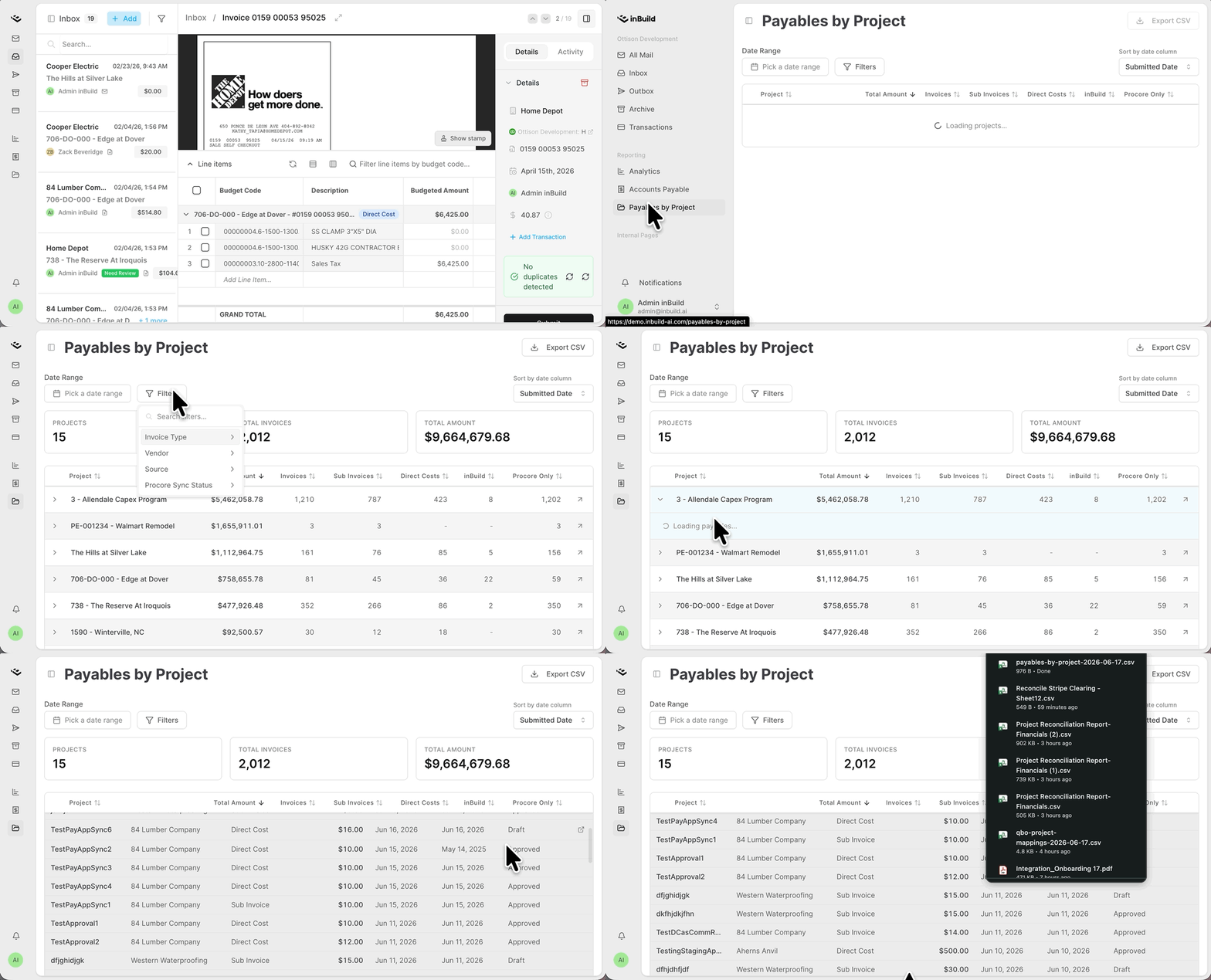
Navigate to the Payables by Project report page from the left sidebar navigation.
View a summary table showing each project's total amount, total invoice count, sub invoice count, and direct cost count.
Filter by date range (submitted date, due date, or created date), vendor, sync status, invoice type (sub invoice vs. direct cost), and source (inBuild vs. Procore only).
Click into any project row to expand and see individual payables with invoice number, vendor, amount, due date, submitted date, and status.
Filter within a project by Billing Period to view payables for a specific period.
Track inBuild-processed invoices vs. Procore-only entries so you can catch anything entered directly into Procore.
Export the report for your records.
Adding Billing Period to Direct Costs
Organizing your direct costs against Procore billing periods just got a whole lot simpler. You can now assign a Billing Period directly to any Direct Cost before syncing to Procore.
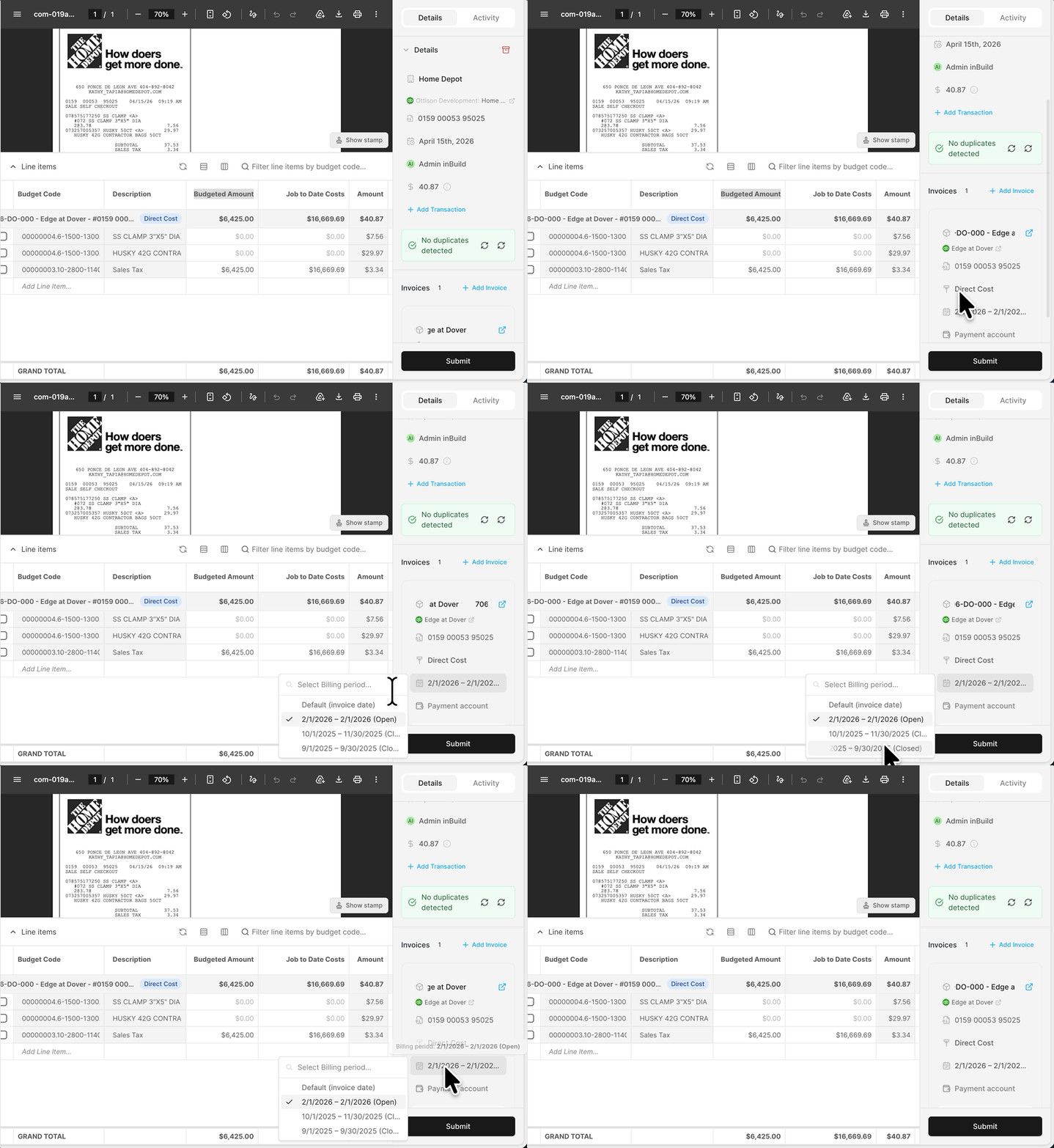
When reviewing a Direct Cost in the inbox, you'll now see a Billing Period selector in the details panel.
Select from available billing periods pulled directly from Procore for the assigned project.
The billing period date range is used as the received date when syncing to Procore, ensuring your direct costs land in the correct period.
Change or clear the billing period at any time before the invoice is synced.
Billing Period is also available as a filter in the new Payables by Project report for easy cross-referencing.
More updates
[Granular Member Roles] Admins can now assign per-domain roles (admin, manager, viewer, none) for Invoicing and Commitments independently, giving you fine-grained control over who can view and edit within each module.
[Ignore Senders in Outlook] Admins can now configure specific email addresses to be ignored by the inBuild inbox, so sent items or irrelevant senders from your billing mailbox no longer get processed.
[Shift-Click Line Item Selection] Select multiple direct cost line items at once using shift-click. This speeds up bulk edits when working with long invoices.
Request a new feature
If you have any feature requests or things you wish inBuild could do, we'd love to get them onto our roadmap! All feature requests are now tracked in our support portal.
Open your browser and navigate to support.inbuild.ai. > Click Create Ticket. > Select Feature Request as the ticket type. > Fill out the form with details about your request.