Outlook Settings
Last updated: April 10, 2026
Overview
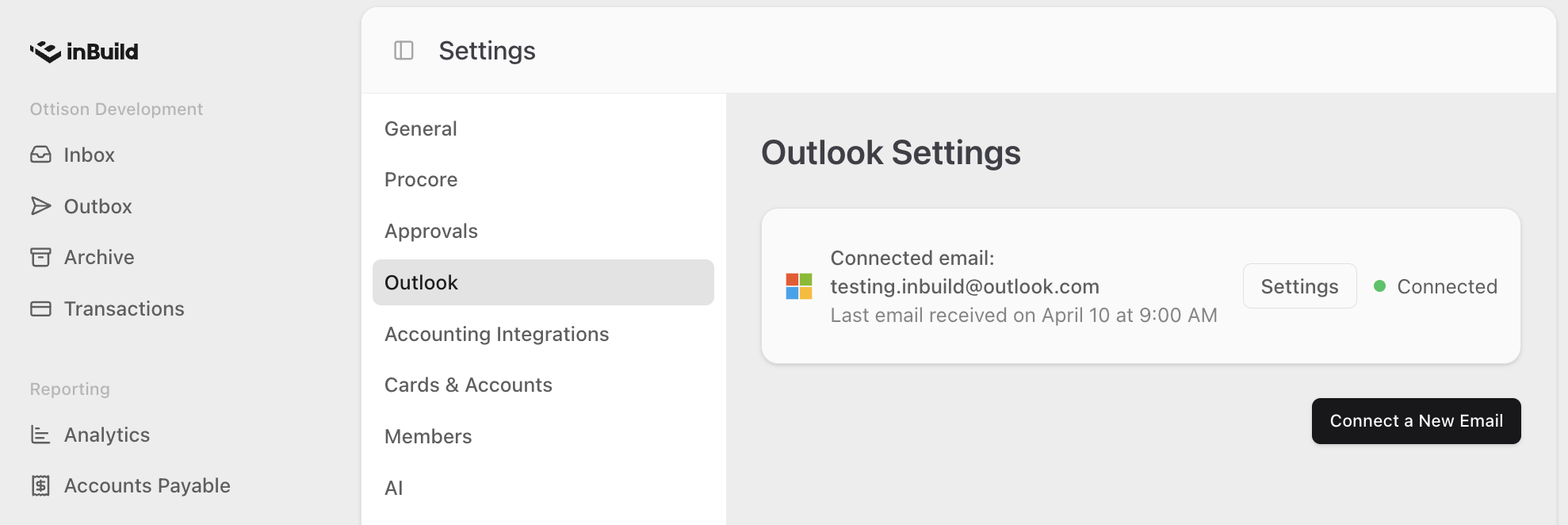
The Outlook Settings area lets you connect one or more Microsoft Outlook email accounts to inBuild. Once connected, inBuild monitors those inboxes for incoming emails, automatically detects invoices, and creates invoice records for your team to review. You can connect multiple accounts, configure how each one processes emails, and control which team member is assigned to new invoices.
To access these settings, navigate to Settings > Outlook in the left sidebar.
All users can view Outlook settings, but only company admins can modify settings, connect or disconnect accounts, or delete integrations.
Connected Outlook Accounts
The main Outlook Settings page displays a card for each Outlook account connected to your company's inBuild workspace. Each card shows the account's email address, its current status, and when the last email was received.
Account Statuses
Each connected account displays one of three statuses:
Status | Description |
🟢 Connected | The account is actively connected and inBuild is monitoring the inbox for invoices. |
⚫ Inactive | The account is connected to Microsoft, but an admin has paused email processing. No new invoices will be created until the account is reactivated. |
🔴 Disconnected | The connection to Microsoft has been revoked. The account must be reconnected before inBuild can process emails from it. |
Each card also displays the date and time the last email was received. If no emails have been received yet, you will see "No email information available or no emails received yet."
Connecting a New Outlook Account
Navigate to Settings > Outlook.
Click Connect (or Connect a New Email if you already have accounts connected).
Sign in with your Microsoft account when the Microsoft authorization page opens.
Grant the requested permissions to allow inBuild to read emails from the account.
You will be redirected back to inBuild. The new account will appear on the Outlook Settings page with a Connected status.
When you first connect an account, you are automatically set as the Default Assignee for invoices received through that account. You can change this in the account's settings afterward.
Reconnecting a Disconnected Account
Navigate to Settings > Outlook.
Find the disconnected account card (marked with a red status dot).
Click Reconnect.
Sign in with the same Microsoft account and grant permissions.
The account status will change back to Connected and inBuild will resume processing emails.
Opening Account Settings
Navigate to Settings > Outlook.
Find the account card for the Outlook account you want to configure.
Click Settings. The per-account settings page will open.
Email Processing Settings
Each connected Outlook account has its own configuration page where you can control how inBuild processes emails from that account. All settings on this page are grouped under the Email Processing Settings heading.
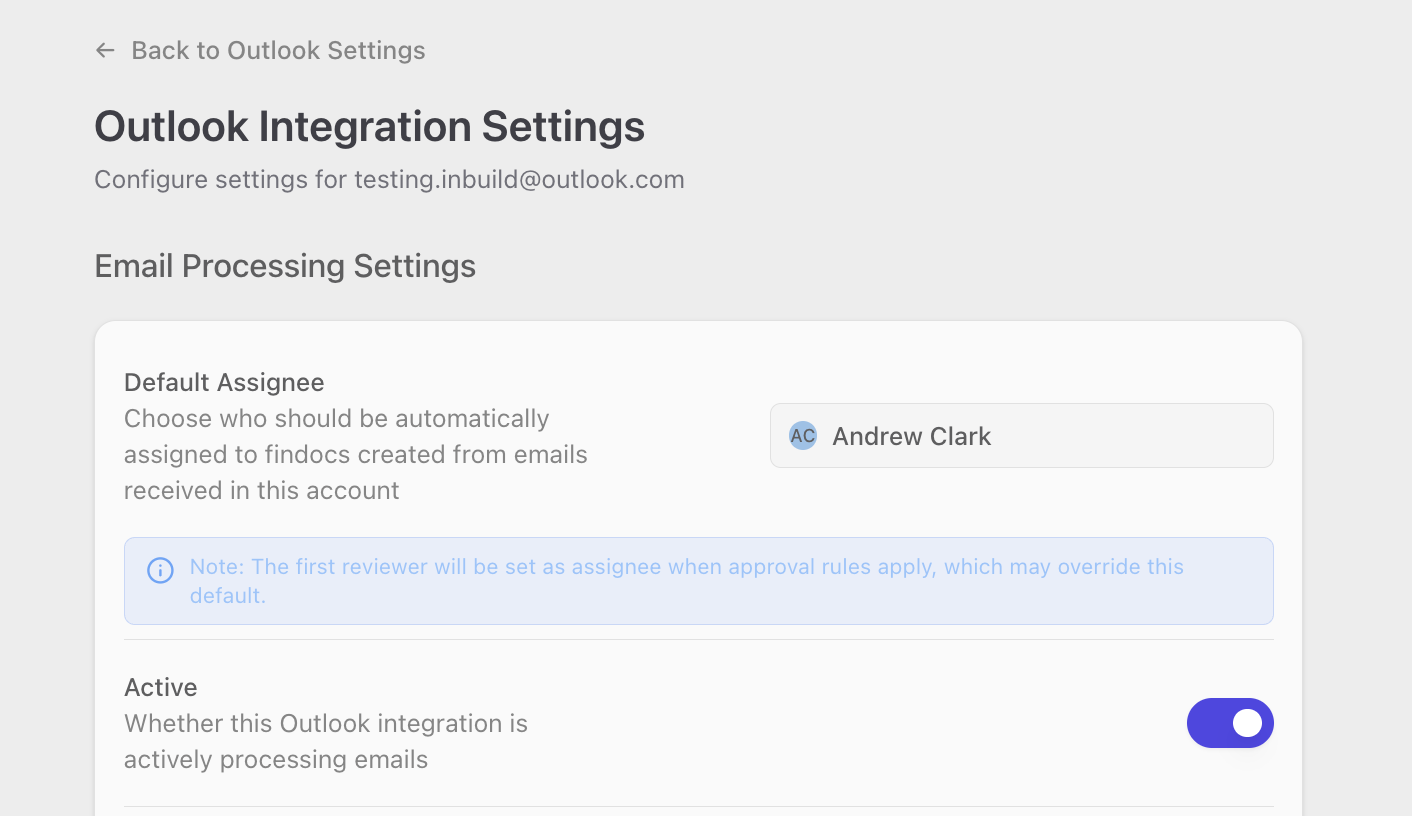
To reach this page, click Settings on any connected account card from the main Outlook Settings page. To return, click ← Back to Outlook Settings at the top of the page.
All users can view these settings, but only company admins can change them. Non-admin users will see all controls as disabled.
Default Assignee
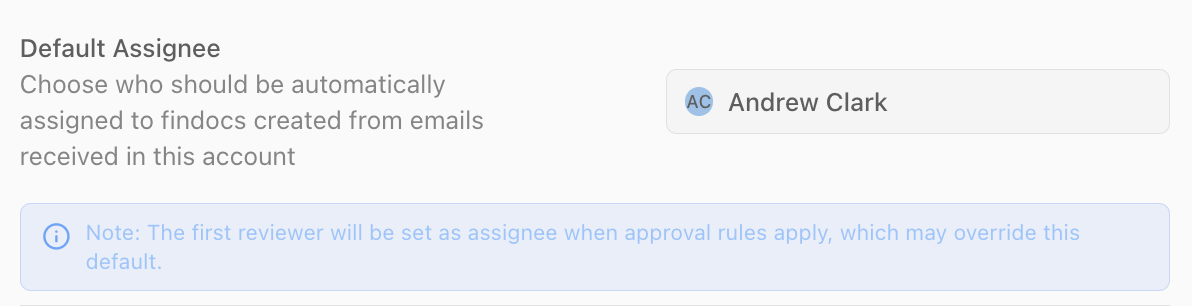
The Default Assignee dropdown controls which team member is automatically assigned to invoices created from emails received in this Outlook account. The assignee is the person responsible for reviewing and processing the invoice in inBuild.
Open the Default Assignee dropdown.
Select a team member from the list, or select None to clear the assignee.
The change saves automatically.
If your company has the first reviewer as assignee approval setting enabled, a note will appear below this dropdown. When an invoice matches an approval rule, the first reviewer in the approval chain will override the default assignee set here. The default assignee still applies to invoices that do not match any approval rule.
Learn more:📄 Default Assignee
Active

The Active toggle controls whether inBuild is actively monitoring and processing emails from this Outlook account.
On: inBuild monitors the inbox and creates invoice records from incoming emails. The account appears as "Connected" on the main page.
Off: inBuild stops processing emails from this account. The OAuth connection to Microsoft remains valid, and the account appears as "Inactive" on the main page. You can reactivate it at any time.
Toggle Active on or off.
The change saves automatically.
Assign Category to Emails with Invoices

The Assign category to emails with invoices toggle controls whether inBuild applies an Outlook email category to emails that contain invoices.
When enabled, emails that inBuild identifies as containing an invoice are tagged with the "inBuild - Invoice" category in your Outlook mailbox. This makes it easy to visually identify processed invoice emails directly in Outlook.
Toggle Assign category to emails with invoices on or off.
The change saves automatically.
Assign Category to Emails without Invoices

The Assign category to emails without invoices toggle controls whether inBuild applies an Outlook email category to emails that do not contain invoices.
When enabled, emails that inBuild reviews and determines are not invoices are tagged with the "inBuild - Not Invoice" category in your Outlook mailbox. This helps you see which emails inBuild has already reviewed and ruled out.
Toggle Assign category to emails without invoices on or off.
The change saves automatically.
The two category settings work independently. You can enable one, both, or neither depending on how you want to organize your Outlook inbox.
Emails That Always Include Invoices
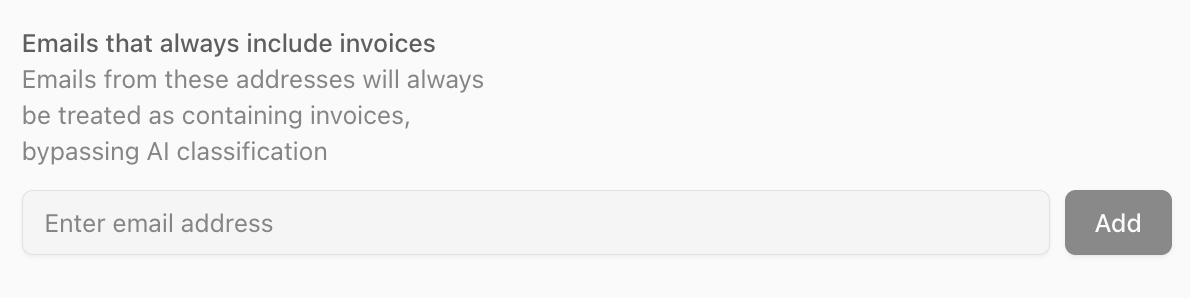
The Emails that always include invoices setting lets you maintain a list of sender email addresses that should always be treated as invoice sources. When inBuild receives an email from one of these addresses, it skips the AI-based classification step and immediately treats the email as containing an invoice.
This is useful for known invoice senders, such as vendor accounting systems or suppliers who consistently send invoices from a specific email address.
Adding an Email Address
Type the sender's email address into the text input field under Emails that always include invoices.
Click Add or press Enter.
The email address appears in the list below the input field.
Email addresses must contain an "@" symbol. Duplicate addresses cannot be added. All addresses are automatically converted to lowercase.
Removing an Email Address
Find the email address you want to remove in the list.
Click the X button next to the address.
The address is removed from the list and emails from that sender will go through normal AI classification again.
Deleting an Outlook Integration
If you no longer need an Outlook account connected to inBuild, you can delete the integration. This disconnects the account from Microsoft and stops all email processing for that account.
Navigate to Settings > Outlook.
Click Settings on the account you want to remove.
Scroll to the bottom of the page.
Click Delete Integration.
A confirmation dialog will appear. Review the warning message.
Click Delete Integration in the dialog to confirm.
A success message will appear and you will be redirected to the main Outlook Settings page. The account will now show as "Disconnected."
Deleting an integration permanently disconnects the Outlook account and all associated settings will be lost. You can reconnect the account later, but you will need to reconfigure all settings from scratch.
Frequently Asked Questions
Can I connect more than one Outlook account?
Yes. You can connect multiple Outlook accounts to your inBuild workspace. Each account has its own settings, default assignee, and email processing configuration. Click Connect a New Email on the main Outlook Settings page to add another account.
What is the difference between "Inactive" and "Disconnected"?
Inactive means an admin has paused email processing using the Active toggle, but the connection to Microsoft is still valid. You can reactivate it at any time by turning the toggle back on. Disconnected means the OAuth connection to Microsoft has been revoked (typically by deleting the integration). You need to click Reconnect and sign in with Microsoft again to restore the connection.
Why is the default assignee not being applied to some invoices?
If your company has approval rules enabled along with the "first reviewer as assignee" setting, the first reviewer in the matching approval chain will override the default assignee. The default assignee from Outlook settings only applies to invoices that do not match any approval rule. Check your company's Approvals settings if you are seeing unexpected assignee behavior.
What happens when I add a sender to "Emails that always include invoices"?
Emails from addresses on this list bypass the AI classification step entirely. inBuild will treat every email from that sender as containing an invoice, regardless of the email's content. This is best used for senders who exclusively send invoices, such as automated billing systems or specific vendor accounting addresses.
Why can I not change any settings?
Only company admins can modify Outlook integration settings. Non-admin users have read-only access and can view the current configuration but cannot make changes. Contact your company admin if a setting needs to be updated.
Will deleting an integration delete my invoices that were already created?
No. Deleting an Outlook integration only disconnects the email account and stops future email processing. Invoices that were already created from previously received emails remain in inBuild and are not affected.
What do the Outlook email categories look like?
When the category settings are enabled, inBuild applies categories named "inBuild - Invoice" or "inBuild - Not Invoice" to emails in your Outlook mailbox. These categories appear as labels on emails in Outlook, helping you quickly identify which emails inBuild has processed and what it found.