Approval Rules (Workflows)
Last updated: April 10, 2026
The approval workflow in inBuild lets you require one or more team members to review and approve invoices before they can be synced to Procore or QuickBooks. You can build multi-tier approval chains, assign reviewers by individual or by Procore project role, and create rules that apply to invoices based on their dollar amount.
All approval settings are managed from a single page. This article covers each setting, how to create and manage approval rules, and how the approval process works for your team when reviewing invoices in the inbox.
Only Procore Company Admins can access and manage approval workflow settings. Other team members can view the rules but cannot create, edit, or change settings.
Navigating to Approval Settings
Click your name in the bottom-left corner of the screen.
Select Settings.
Click Approvals in the settings sidebar.
Enabling Approvals

The Require approvals for invoices toggle is the master switch for the entire approval workflow. When this toggle is off, no approval checks are performed on any invoices, even if you have rules configured.
Navigate to the Approvals settings page.
Toggle Require approvals for invoices to the on position. The toggle will highlight to confirm it is active.
You can create and configure approval rules while this toggle is off. The rules will not be enforced until you turn the toggle on.
Dispute Return Policy
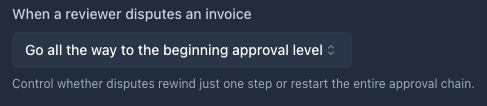
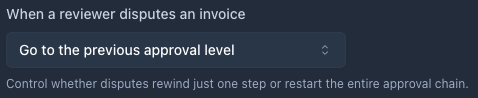
The When a reviewer disputes an invoice dropdown controls what happens to the approval chain when a reviewer disputes an invoice at a tier beyond the first. This setting determines how far back the chain rewinds.
Navigate to the Approvals settings page.
Locate the When a reviewer disputes an invoice dropdown.
Select one of the two options described below.
Option | Description |
Go to the previous approval level | Only the immediately previous tier is reverted to pending. Reviewers in that tier must re-approve before the disputed tier can proceed again. This is the default setting. |
Go all the way to the beginning approval level | All prior tiers are reverted to pending. The entire approval chain restarts from tier 1, and every reviewer across all tiers must approve again. |
If a dispute happens on the first tier, there are no previous tiers to revert regardless of which policy you select. The dispute blocks the tier from completing until the reviewer changes their decision or the invoice is revised.
Set First Reviewer as Assignee

The Set first reviewer as assignee toggle controls whether the first reviewer in the approval chain is automatically assigned to each invoice.
Navigate to the Approvals settings page.
Toggle Set first reviewer as assignee to the on position.
When enabled, the system identifies the first reviewer in the first actionable tier of the approval chain and automatically sets that person as the invoice's assignee. This overrides any default assignee that would normally be applied (such as the Default Assignee configured in your Outlook email integration settings).
When disabled, the invoice assignee is determined by the normal default assignee logic.
Learn more:
Daily Pending Reviews Reminder Emails
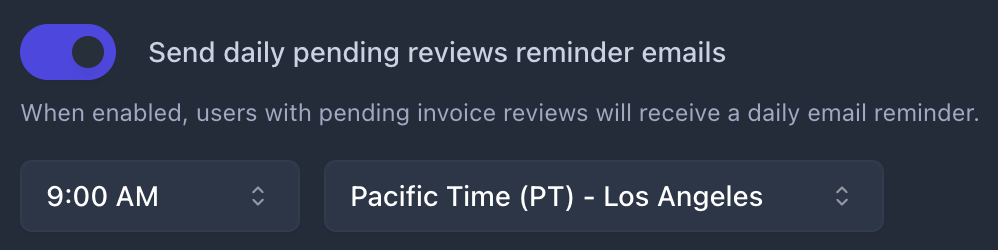
The Send daily pending reviews reminder emails toggle enables automated email reminders for team members who have invoices awaiting their approval.
Navigate to the Approvals settings page.
Toggle Send daily pending reviews reminder emails to the on position. Two additional dropdowns will appear.
Select the time you want reminder emails to be sent. Options are available in 15-minute increments across the full 24-hour day (e.g., 9:00 AM, 9:15 AM). The default is 9:00 AM.
Select the timezone for the reminder schedule. The default is Pacific Time (PT) - Los Angeles.
When enabled, each team member with pending invoice reviews will receive one email per day at the configured time, reminding them to take action on invoices waiting for their approval.
Understanding Approval Rules
Approval rules define who needs to approve an invoice and under what conditions. Rules are displayed as cards on the Approvals settings page, below the global settings described above.
Rule Types
There are two types of approval rules:
Rule Type | Description |
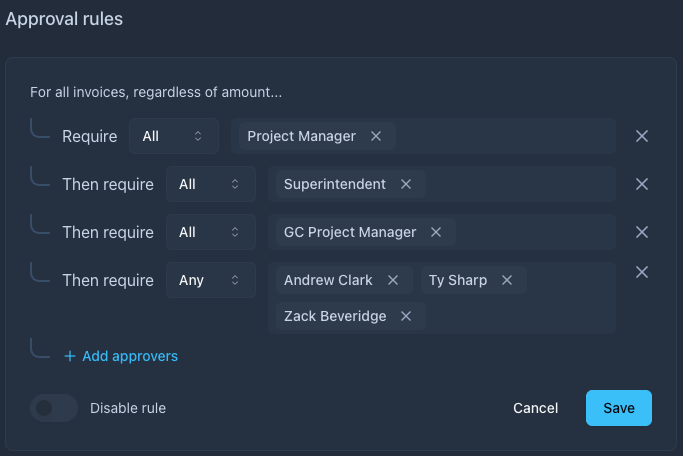
Catch-all rule | Applies to all invoices regardless of amount. There can be at most one catch-all rule per company. This rule is displayed with the condition: "For all invoices, regardless of amount..." |
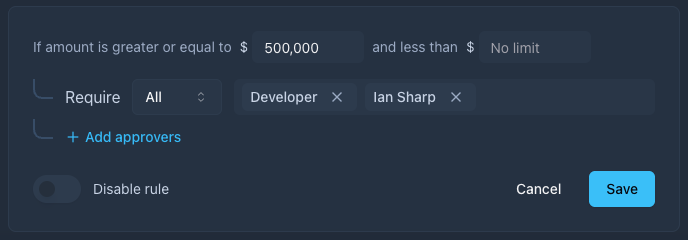
Amount-based rule | Applies only to invoices within a specific dollar amount range. You can set a minimum amount (inclusive), a maximum amount (exclusive), or both. Amount ranges must not overlap with other rules. |
Cascading Rule Behavior
When an invoice enters the approval workflow, the system evaluates which rules apply:
If a catch-all rule exists and is enabled, it applies to the invoice.
If an amount-based rule matches the invoice total and is enabled, it also applies.
If both a catch-all rule and an amount-based rule apply, both are enforced. The catch-all rule's tiers are processed first, followed by the amount-based rule's tiers.
Amount-based rules work in addition to the catch-all rule, not as a replacement. If you want certain invoices above a dollar threshold to require extra approvals, create an amount-based rule with those additional reviewers. The catch-all rule's reviewers will still need to approve first.
Tiers and Reviewer Requirements
Each rule contains one or more tiers (approval levels). Tiers process sequentially: tier 1 must complete before tier 2 begins, tier 2 before tier 3, and so on.
For each tier, you choose a requirement type:
Option | Description |
Any | Only one reviewer in the tier needs to approve. Once one person approves, the remaining reviewers in that tier are automatically skipped and the chain advances to the next tier. |
All | Every reviewer in the tier must approve. The chain does not advance until all reviewers have approved. |
Reviewer Types
When adding reviewers to a tier, you can choose from two categories:
Roles — Procore project roles (e.g., Project Manager, Superintendent). When a role is selected, the system looks up who holds that role in the invoice's assigned Procore project and creates reviews for those users. Roles are shown with a group icon in the reviewer selector.
People — Individual team members from your company. These reviewers are always the same person regardless of which project the invoice belongs to. People are shown with an avatar displaying their initials.
Role-based reviewers are resolved when the approval chain starts for an invoice. If a role has no users assigned in the Procore project, that reviewer slot is skipped. If all reviewers in a tier are skipped, the entire tier is skipped. Make sure the relevant roles are assigned to users in each Procore project for role-based approval to work correctly.
Creating an Approval Rule
Navigate to the Approvals settings page.
Scroll down to the Approval rules section.
Click + Add rule. An inline rule builder will appear on the page.
If this is an amount-based rule, enter the dollar range. Type a value in the min amount field (the minimum invoice total that triggers this rule, inclusive) and/or the max amount field (the upper limit, exclusive). Leave the min field empty for no lower bound, or leave the max field empty for no upper limit.
In the first tier row, select Any or All from the requirement dropdown.
Click the reviewer selector to open the search popover. Browse or search for reviewers under Roles (Procore project roles) or People (individual team members).
Select one or more reviewers. Each selected reviewer appears as a chip in the tier row.
To add another tier, click + Add approvers below the existing tiers. A new tier row will appear.
Repeat steps 5 through 7 for each additional tier.
Click Save to create the rule.
When creating a new amount-based rule, the min amount field may auto-fill with the previous rule's maximum value to help you avoid overlapping ranges. If the system detects an overlap with an existing rule, an error message will appear and the Save button will be disabled until you correct the range.
Editing an Approval Rule
Navigate to the Approvals settings page.
Find the rule card you want to modify.
Click the three-dot menu icon in the top-right corner of the rule card.
Select Edit. The inline rule builder will open with the rule's current configuration.
Make your changes to the amount range, requirement type, reviewers, or tiers.
Click Save to apply your changes.
Disabling a Rule
You can disable a rule without deleting it. A disabled rule is preserved with all its configuration but is not evaluated during the approval workflow.
Open the rule in edit mode using the steps above.
Toggle Disable rule at the bottom-left of the rule builder to the on position.
Click Save. The rule card will show a Disabled badge and appear dimmed.
Deleting a Rule
Click the three-dot menu icon on the rule card.
Select Delete. A confirmation dialog will appear.
Confirm the deletion.
The catch-all rule cannot be deleted. If you attempt to delete it, a message will appear: "This rule can only be disabled." Use the Disable rule toggle within the rule builder instead.
How the Approval Workflow Functions
This section describes how configured approval rules are applied when your team processes invoices in the inbox.
When the Approval Chain Starts
The approval chain starts when a project is first assigned to an invoice, either automatically by AI processing or manually by a user selecting a project. At that point, the system evaluates which rules apply to the invoice, resolves role-based reviewers to actual users based on the assigned Procore project, and creates review requests starting from tier 1.
If you change the project on an invoice after the approval chain has started, a confirmation dialog will warn you that the approval chain will restart. All existing reviews are removed and new reviews are created from tier 1 based on the new project's role assignments.
Reviewing Invoices in the Inbox
When an invoice has an active approval workflow, an Approvals section appears on the invoice's payable card in the inbox. This section shows:
Your own review status (if you are a reviewer for the current tier), with Dispute and Approve buttons.
Other reviewers' statuses: Pending, Approved, or Disputed.
A link to view the full approval chain details in a modal.
If you are a current reviewer with a pending review, you must make an approve or dispute decision before you can submit the invoice.
Tier Progression
Tiers process in order. The first tier must complete before the second tier's reviewers are prompted, and so on through all tiers across all applicable rules.
Any requirement: When one reviewer in the tier approves, remaining pending reviews in that tier are automatically skipped and the workflow advances to the next tier.
All requirement: Every reviewer in the tier must approve. Any pending or disputed review blocks the tier from completing.
After the final tier of all applicable rules is completed, the invoice is fully approved and will sync to Procore or QuickBooks when submitted.
Disputes
When a reviewer clicks Dispute, a dialog appears with a text area titled Dispute reason. A reason is required before the dispute can be submitted.
A disputed review blocks the tier from completing, the same as a pending review. The dispute return policy setting (described above) determines whether the chain rewinds to the previous tier or all the way to the beginning.
Reviewers can change their decision at any time. For example, a reviewer who previously disputed an invoice can later change their decision to approve.
Implicit Approval
If no reviewers can be resolved for an invoice (for example, all role-based reviewers have no users assigned in the Procore project, or no rules apply), the invoice receives implicit approval. The invoice will display one of the following banners:
Green banner: "No reviews required. This invoice will sync once submitted." This appears when no rules match or all tiers are empty.
Amber/warning banner: "Configured reviewers could not be resolved for this project. This invoice will sync once submitted. Check that the required roles are assigned in Procore." This appears when rules exist but role-based reviewers could not be found. Admins will see a Create Reviews button on this banner to manually trigger review creation after fixing the role assignments.
Setting Up Procore Project Roles
If your approval rules use Procore project roles as reviewers, those roles must have users assigned to them in each Procore project. Role resolution happens when the approval chain starts for an invoice. If a role has no user assigned in the invoice's project, that reviewer slot is skipped.

To assign roles to team members in a Procore project:
Open the project in Procore.
Navigate to the project's team or directory settings where roles are managed.
Assign the appropriate users to each role that is referenced in your inBuild approval rules.
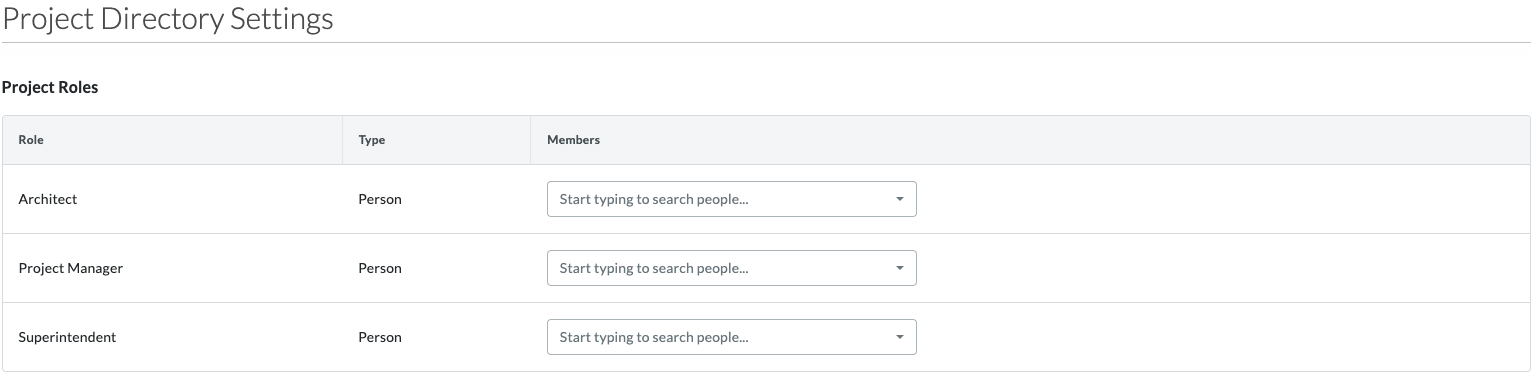
Roles must be set up individually for each project in Procore. If a reviewer role is not assigned in a particular project, invoices for that project will skip that reviewer. If a role resolves to a user who does not yet have an inBuild account, an account is automatically created for them and an invitation email is sent.
Frequently Asked Questions
What initiates the approval workflow for an invoice?
The approval chain starts when a project is assigned to an invoice. This can happen automatically through AI processing or manually when a user selects a project. At that point, the system evaluates your approval rules, resolves role-based reviewers to actual users in the assigned Procore project, and creates review requests starting from tier 1.
What happens if a catch-all rule and an amount-based rule both apply to the same invoice?
Both rules are enforced. The catch-all rule's tiers are processed first, followed by the amount-based rule's tiers. The invoice must pass through all tiers from both rules before it is fully approved.
What happens if no reviewers can be found for an invoice?
If all role-based reviewers resolve to empty roles in the project (no users assigned), or if no rules apply, the invoice receives implicit approval. It will display a banner indicating that no reviews are required, and the invoice will sync when submitted. If this is due to unresolved roles, an amber warning banner will appear suggesting you check role assignments in Procore.
Can I change the project on an invoice after the approval chain has started?
Yes, but changing the project restarts the entire approval chain. A confirmation dialog will warn you before the change is applied. All existing reviews are removed and new reviews are created from tier 1 based on the new project's role assignments.
Can a reviewer change their decision after approving or disputing?
Yes. Reviewers can change their decision at any time. For example, a reviewer who disputed an invoice can later change their decision to approve, which will allow the tier to progress.
Who can manage approval settings and rules?
Only Procore Company Admins can create, edit, enable/disable, or delete approval rules and change approval settings. Other team members can view the configured rules but cannot make changes.
Can I delete the catch-all rule?
No. The catch-all rule cannot be deleted. You can disable it by opening the rule in the rule builder and toggling Disable rule to the on position.