Member Settings
Last updated: May 6, 2026
Overview
The Members Settings page shows everyone who has access to your company's inBuild account. From here, you can search for members, change user roles, and remove members who no longer need access. All members can view this page, but only Admins can make changes.
To open this page, navigate to Settings in the sidebar, then click Members.
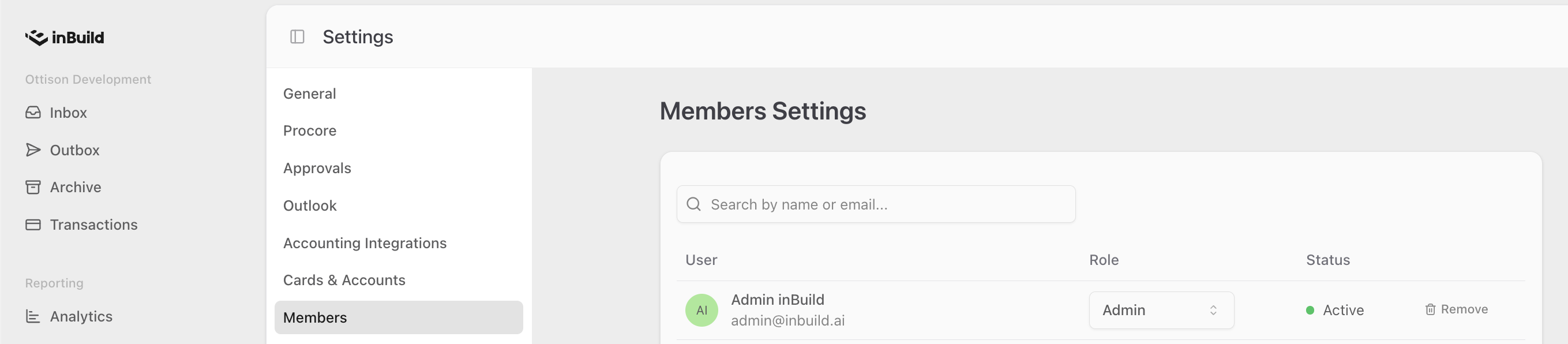
Understanding the Members Table
The members table lists all active users in your company, sorted alphabetically by name. Each row shows information about a single member across the following columns:
Column | Description |
User | Displays the member's avatar, full name, and email address. If no name is on file, the email address is shown in place of the name. |
Role | Shows the member's current role (Admin or Manager) as a dropdown. Admins can change roles for other members. Managers see this column as read-only. |
Status | Indicates whether the member has logged into inBuild. Active (green dot) means they have logged in at least once. Pending (gray dot) means they have not logged in yet. |
Actions | Contains the Remove button for each member. This column is only visible to Admins and only when Approval Rules are not enabled for the company. |
Members who have been previously removed do not appear in this table.
Searching for Members
Use the search field above the table to quickly find a specific member.
Click the search field labeled Search by name or email... at the top of the members table.
Type any part of the member's first name, last name, or email address.
The table filters in real time as you type, showing only members that match your search.
Search is case-insensitive and supports partial matches. For example, typing "mar" will match members named "Maria," "Mark," or with an email containing "mar."
If no members match your search, the table displays: "No members found."
Changing a Member's Role
Each member in your company is assigned one of two roles. Admins can change the role of any other member using the Role dropdown in the members table.
Role | Description |
Admin | Full administrative privileges. Admins can change other users' roles, remove members, and access admin-only settings throughout inBuild (such as AI settings, accounting integrations, and project active status). |
Manager | Standard access. Managers can view the members list and use core features of inBuild, but cannot change roles, remove members, or access admin-only settings. |
How to Change a Role
Navigate to Settings > Members.
Find the member whose role you want to change.
Click the Role dropdown on their row.
Select Admin or Manager.
The role updates immediately.
You cannot change your own role. The Role dropdown is disabled on your own row. If you need your role changed, ask another Admin in your company to update it for you.
If the role change fails for any reason, a notification will appear with the message "Failed to update admin status" and the role will revert to its previous value.
Removing a Member
Admins can remove members from the company to revoke their access to inBuild. Removed members are immediately logged out of all active sessions, and any invoices or documents assigned to them are automatically unassigned so nothing is left orphaned.
Removing a member cannot be undone from inBuild. To reinstate a removed member, you will need to contact inBuild support.
Prerequisites to Removing a Member
You must be an Admin
Approvals must be turned off
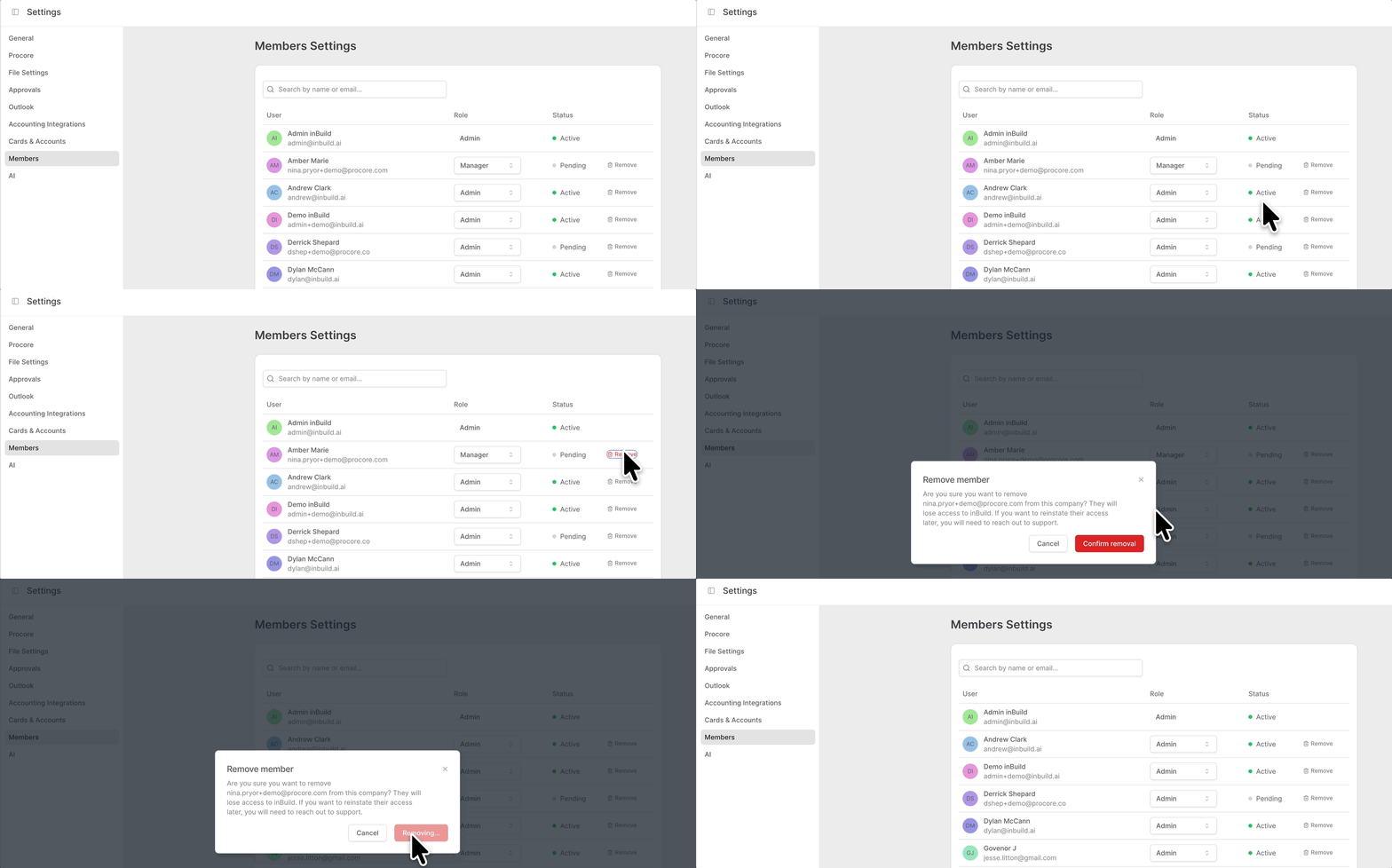
How to Remove a Member
Navigate to Settings > Members.
Find the member you want to remove.
Click the Remove button on their row.
A confirmation dialog will appear showing the member's email address and explaining the consequences.
Click Confirm removal to proceed, or click Cancel to go back without making changes.
The member is removed from the list and loses access to inBuild immediately.
What Happens When a Member Is Removed
The member is immediately logged out of all sessions.
Any invoices or documents assigned to them are unassigned, and a system note is added to each document recording the change.
The member no longer appears in the members table.
The member can no longer access the company in inBuild.
When the Remove Button Is Not Available
There are several situations where the Remove button will not appear:
You are a Manager. Only Admins can remove members. The entire Actions column is hidden for Managers.
It is your own row. You cannot remove yourself from the company.
Approval Rules are enabled. When your company has Approval Rules turned on, the Remove option is hidden for all users. This is because removing a user who is part of an approval workflow could disrupt pending reviews. To remove a member, an Admin must first disable Approval Rules.
Permissions Summary
The table below summarizes what each role can do on the Members Settings page.
Action | Admin | Manager |
View the members list | ✓ | ✓ |
Search for members | ✓ | ✓ |
Change another member's role | ✓ | ✗ |
Remove a member | ✓ (when Approval Rules are off) | ✗ |
Frequently Asked Questions
Why can't I change a member's role?
Only Admins can change roles. If you are a Manager, the Role dropdown will appear but will be disabled. Additionally, Admins cannot change their own role. If you need your own role changed, ask another Admin in your company.
Why don't I see the Remove button?
The Remove button is only visible to Admins. It also does not appear on your own row, since you cannot remove yourself. If you are an Admin and still do not see it, your company likely has Approval Rules enabled. An Admin must disable Approval Rules before members can be removed.
What does "Pending" status mean?
A Pending status means the member has been added to your company but has not logged into inBuild yet. Once they log in for the first time, their status will change to Active. This status is informational and cannot be changed manually.
Can I reinstate a member after removing them?
Removed members cannot be re-added through the inBuild interface. To reinstate a previously removed member, contact inBuild support.
What happens to a removed member's invoices and documents?
When a member is removed, any invoices or documents that were assigned to them are automatically unassigned. A system note is added to each affected document recording the change, so you have a clear audit trail. No documents are deleted.
Why do I see "Cannot remove users when approval rules are enabled"?
This message appears when your company has Approval Rules turned on. Removing members while approval workflows are active could disrupt pending reviews. An Admin must first disable Approval Rules in your company settings before any members can be removed.