Line Item Settings
Last updated: April 10, 2026
Overview
The Line Items section on the General Settings page gives company admins control over who can access line items and whether invoices can be approved without complete line-item data. These settings help you tailor approval workflows to match how your team operates — especially when not every user needs to interact with line-item details.
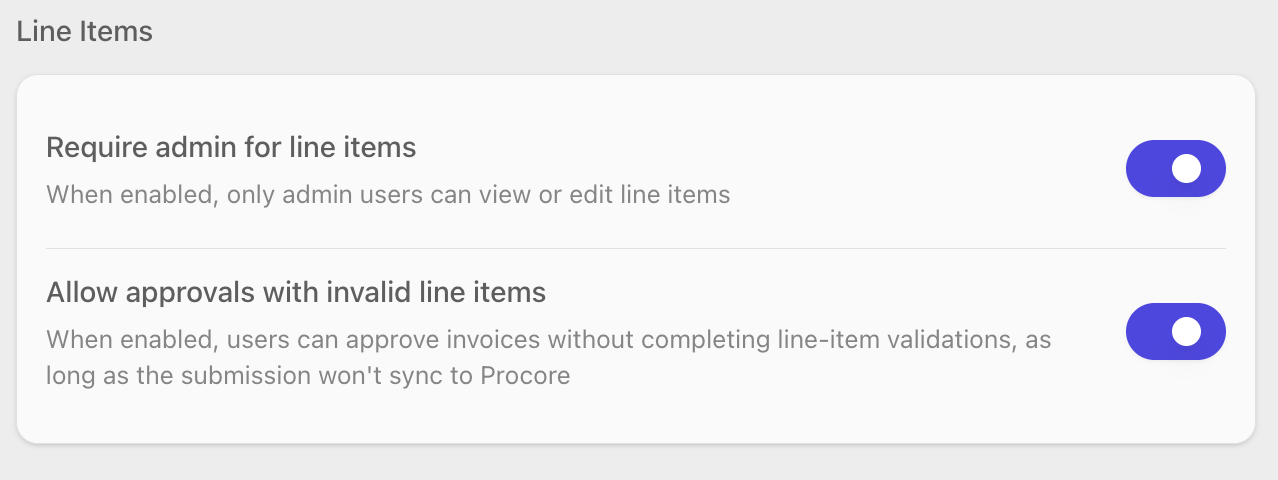
There are two independent toggles in this section:
Require admin for line items — restricts line-item visibility and editing to admin users only.
Allow approvals with invalid line items — lets users approve invoices that have incomplete line-item data, as long as the approval won't trigger a sync to Procore.
Only company admins can change these settings. Non-admin users can view the current state of each toggle but cannot modify them.
Require Admin for Line Items
When Require admin for line items is enabled, the line items panel in the inbox is completely hidden for non-admin users. Non-admin users can still view the invoice document and invoice metadata, but they cannot see, edit, or interact with line items in any way.
This is useful when your workflow has dedicated admin staff managing line-item coding and you want to keep the inbox experience streamlined for other team members who only need to review and approve invoice documents.
How to Enable or Disable This Setting
Navigate to Settings → General.
Scroll to the Line Items section.
Toggle Require admin for line items on or off.
The change takes effect immediately across the platform.
What Changes When This Is Enabled
Area | Effect for Non-Admin Users |
Inbox line items panel | Hidden entirely. The resizable panel and its drag handle are removed. |
Inbox invoice document and metadata | Still visible. Non-admin users can review the PDF and invoice details as usual. |
Invoice approval flow | Line-item validations are skipped for non-admin users, since they cannot see or edit line items. |
Admin users are not affected by this setting. Admins always have full access to view and edit line items regardless of whether this toggle is on or off.
Allow Approvals with Invalid Line Items
When Allow approvals with invalid line items is enabled, users can approve invoices even if line-item data is incomplete or has validation errors — but only when the approval will not sync the invoice to Procore.
This is helpful when you want to move invoices through your internal approval process without requiring every line item to be fully coded first, while still ensuring that any data sent to Procore is complete and accurate.
How to Enable or Disable This Setting
Navigate to Settings → General.
Scroll to the Line Items section.
Toggle Allow approvals with invalid line items on or off.
The change takes effect immediately across the platform.
How the Validation Bypass Works
Scenario | Behavior |
Approval will not sync to Procore | Line-item validations are bypassed. The invoice can be approved with incomplete line items. |
Approval will sync to Procore | Line-item validations are still enforced. All line items must be complete and valid before the invoice can be approved. |
This setting never bypasses validation for invoices that will sync to Procore. This safeguard prevents incomplete or invalid data from being pushed to your Procore account.
Unlike Require admin for line items (which only affects non-admin users), this setting applies to all users — including admins.
How the Two Settings Work Together
These two toggles are independent settings, but they can combine to affect whether line-item validations are enforced during the approval flow. The system skips line-item validation if either of the following is true:
Require admin for line items is on and the current user is not an admin.
Allow approvals with invalid line items is on and the approval will not sync to Procore.
Here are some common combinations and their effects:
Require Admin for Line Items | Allow Approvals with Invalid Line Items | Result |
Off | Off | All users must complete line-item validations before approving any invoice. |
On | Off | Non-admin users cannot see line items and skip validation. Admins must still complete all validations. |
Off | On | All users can see line items, but anyone can approve without completing them — as long as the invoice won't sync to Procore. |
On | On | Non-admin users cannot see line items and always skip validation. Admins can see line items and can approve without completing them when the invoice won't sync to Procore. |
Frequently Asked Questions
Why can't I change these toggles?
Only company admins can modify the Line Items settings. If the toggles appear grayed out, you do not have admin permissions. Contact a company admin to make changes on your behalf.
If I enable "Require admin for line items," can non-admin users still approve invoices?
Yes. Non-admin users can still approve invoices — they are not blocked by line-item validations since they cannot see or edit line items. The approval flow skips line-item checks for non-admin users when this setting is enabled.
Does "Allow approvals with invalid line items" ever let invalid data sync to Procore?
No. This setting only bypasses validation when the approval will not trigger a sync to Procore. If an invoice is going to sync to Procore, all line items must be complete and valid regardless of this setting.
Do these settings take effect right away?
Yes. Both settings take effect immediately after you toggle them. There is no need to save separately or refresh the page.