Reconnecting to QBD
Last updated: June 16, 2026
If your inBuild Pro connection to QuickBooks Desktop (QBD) has stopped syncing, you can re-establish it by following the steps below. This is most commonly needed after you've changed your QuickBooks company file — for example, if the file was renamed, moved to a new path, or replaced with a new file.
If you've previously tried reconnecting and it didn't complete (for example, the flow seemed to skip questions), don't worry — the cleanup steps below will reset everything.
Before you start
A few prerequisites that will save you headaches:
Log into QuickBooks Desktop as the Admin user. The reconnection cannot be completed by a standard user.
Switch QuickBooks to Single-User mode (File > Switch to Single-User Mode). You may need to ask other users to save and exit, or sign them out, before switching.
Use the same machine where the Web Connector lives. If your QuickBooks runs on a hosted desktop (such as Right Networks), the entire reconnection needs to happen on that hosted desktop, not your local machine.
Ensure you can access a browser on the same machine where the Web Connector lives.
Step 1: Clean up any incomplete connections
If you've already attempted a reconnection that didn't work, clear out the partial setup before starting fresh.
In inBuild Pro, go to Settings > Accounting Integrations and delete any existing QuickBooks Desktop connection (trash icon, then Disconnect).
Open the QuickBooks Web Connector and remove any existing inBuild connections.
In QuickBooks Desktop, go to Edit > Preferences > Integrated Applications > Company Preferences.
Select all inBuild-related entries and click Remove, then click OK.
Step 2: Start the reconnection in inBuild Pro
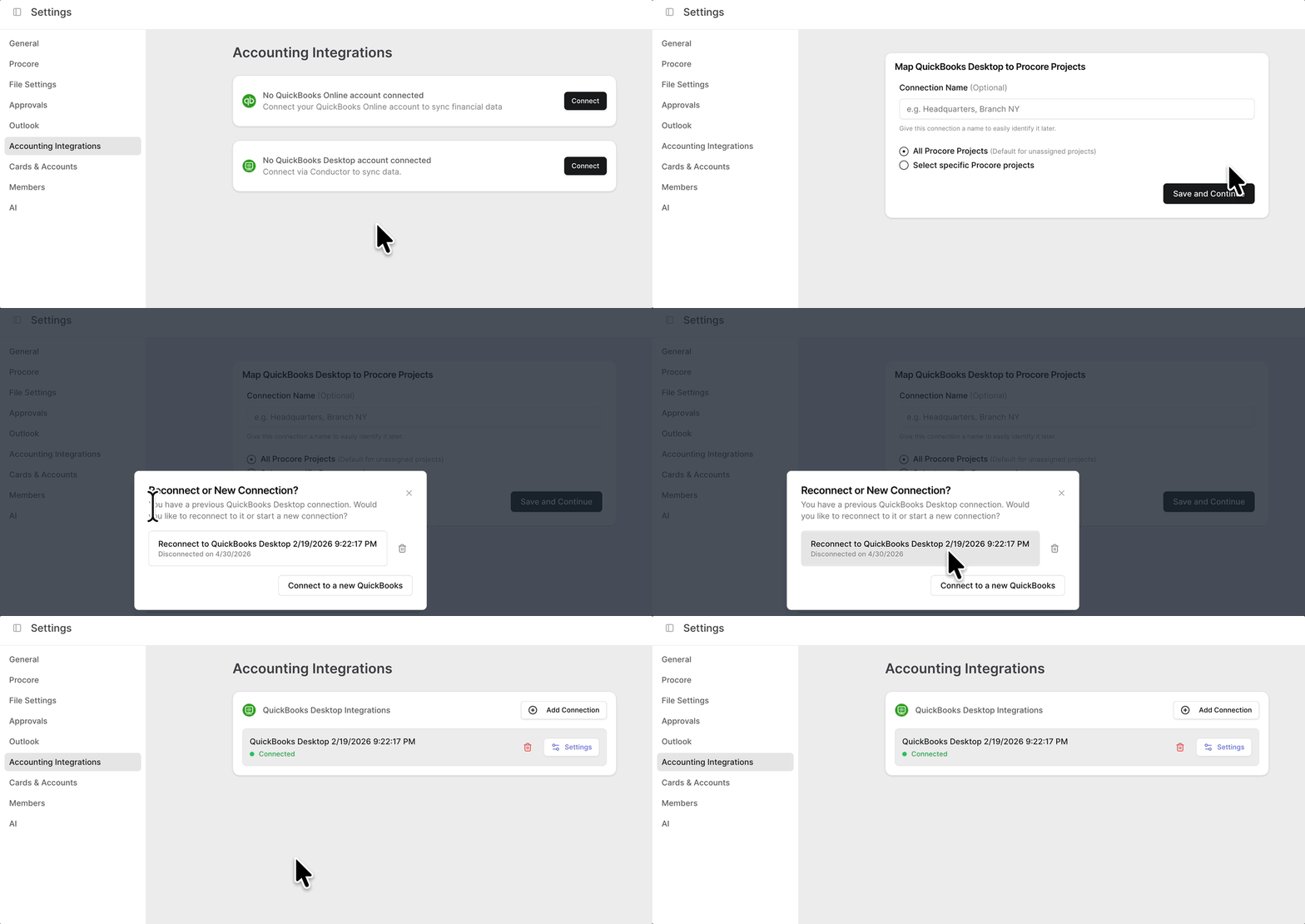
In inBuild Pro, go to Settings > Accounting Integrations and click Connect to QuickBooks Desktop.
A popup with appear to Reconnect to a previously connected account, click on the most recent connection.
Step 3: Begin the reconnection process
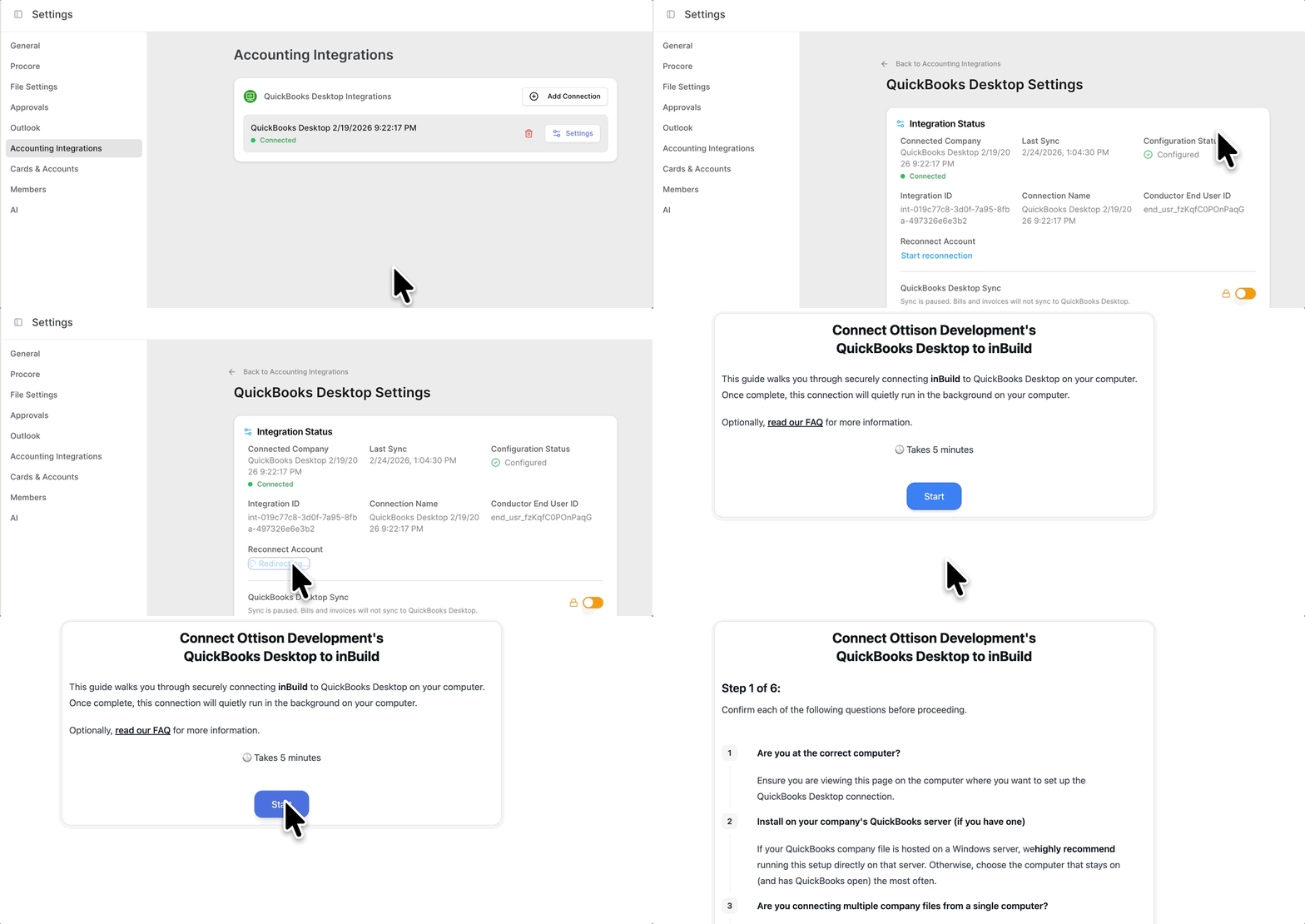
Click on the Settings for the connected QuickBooks Desktop integration.
Under Integrations Status, click on the blue "Start reconnection" action, and follow the instructions through the reconnection steps.
Step 4: Confirm your mappings
Your mappings are preserved automatically when you disconnect, so you shouldn't need to redo them. To double-check:
Go to any of the data mapping table Settings in inBuild Pro.
Scroll down to the mapping sections and confirm everything looks correct.
Step 5: Let the sync catch up
Open the Web Connector and let it run. It will start pushing through any transactions that failed to sync while the connection was down. Most queued transactions resync automatically — you don't need to manually resubmit them.
Once the sync is caught up, you're free to switch QuickBooks back to Multi-User mode.
Frequently Asked Questions
The Web Connector is frozen, how do I fix it?
QuickBooks Web Connector can lock up if you try to interact with it while it's running. Wait for the current run to finish, or close and reopen it. Use Task Manager if needed to quite the web connector. On hosted environments, you may need to sign out of the desktop and sign back in.
Do I need to remap accounts after reconnecting?
No. Mappings are saved when you unlink or disconnect, and they're restored automatically once the new connection is in place.