Correcting an Invoice Already Synced to QBD
Last updated: October 8, 2026
Overview
If you need to correct an invoice that has already been synced to QuickBooks Desktop (QBD), remove the existing QBD transaction and the related Procore direct cost/subcontractor invoice first. Then update the invoice in inBuild, sync it to Procore, and "Re-Sync" the corrected transaction to QBD.
Before you start
You need access to delete the transaction in QBD and the direct cost in Procore. The QBD transaction may be a bill or a credit card charge. Check the invoice, vendor, and amount carefully before deleting either record.
Deleting a bill, credit card charge, or direct cost removes that record from its system. Confirm that each record matches the invoice you intend to correct before you delete it.
Correct and re-sync the invoice
In QuickBooks Desktop, find and delete the bill or credit card charge that matches the invoice.
In inBuild, select View in Procore on the invoice to open the related item in Procore.
In Procore, confirm that the direct cost or subcontractor invoice matches the what's in inBuild, then delete it from Procore.
Return to inBuild and open the invoice from the Inbox. After inBuild detects that the Procore transaction was deleted, the invoice will automatically be available to correct in the Inbox. (Refresh the page if needed)
Make the required corrections to the invoice in inBuild.
Select Sync to Procore to create the corrected direct cost or subcontractor invoice in Procore.
Once synced to Procore, select Re-sync beside the QBD sync status in inBuild.
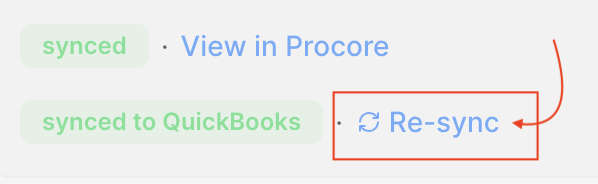
Use View in Procore from the invoice in inBuild to go to the related Procore item and avoid deleting the wrong direct cost.
Who can re-sync to QBD?
The Re-sync action requires a Procore company admin. If you do not have permission to use it, ask your Procore company admin to complete the final step.
The invoice did not return to the Inbox
Make sure the QBD transaction was deleted and give inBuild a moment to detect the deletion. Refresh the invoice in inBuild. If it remains linked to QBD or is not available in the Inbox, contact your inBuild administrator for help.