Managing your All Mail emails
Last updated: October 7, 2026
All Mail lets your team sort the emails from your connected Outlook inboxes into folders, archive the ones you're done with, and tag them with labels. This article covers how to create custom folders, move emails between folders, and add labels.
You need All Mail access to use these features. If you don't see All Mail in the sidebar, ask a company admin to turn it on for your user
The Folders sidebar
The Folders panel on the left side of All Mail shows where every email lives. Each folder shows how many emails are in it.
Folder | What it holds |
|---|---|
All Mail | Every email from your connected accounts, wherever it's filed |
Inbox | New emails. Every email lands here when it first arrives |
Archive | Emails you've archived |
Custom folders | Folders your team creates. They're listed under Archive, in alphabetical order |
Create a custom folder
Custom folders let you group emails however your team works, for example by vendor, project, or job.
Open All Mail.
Click the + (Create folder) button next to Folders at the top of the sidebar.
In the Create mail folder window, type a folder name.
Click Create folder.
The new folder appears in the sidebar under Archive.
Folder name rules
Names can be up to 64 characters.
Each name must be unique within your company. Matching ignores capitalization, so "Lumber" and "lumber" count as the same name.
You can't use Inbox, Archive, or All Mail as a folder name.
Folders are shared. Everyone in your company with All Mail access sees the same folders and the emails filed in them.
Move emails
You can move an email into Inbox, Archive, or any custom folder. An email lives in one folder at a time, so moving it takes it out of the folder it was in.
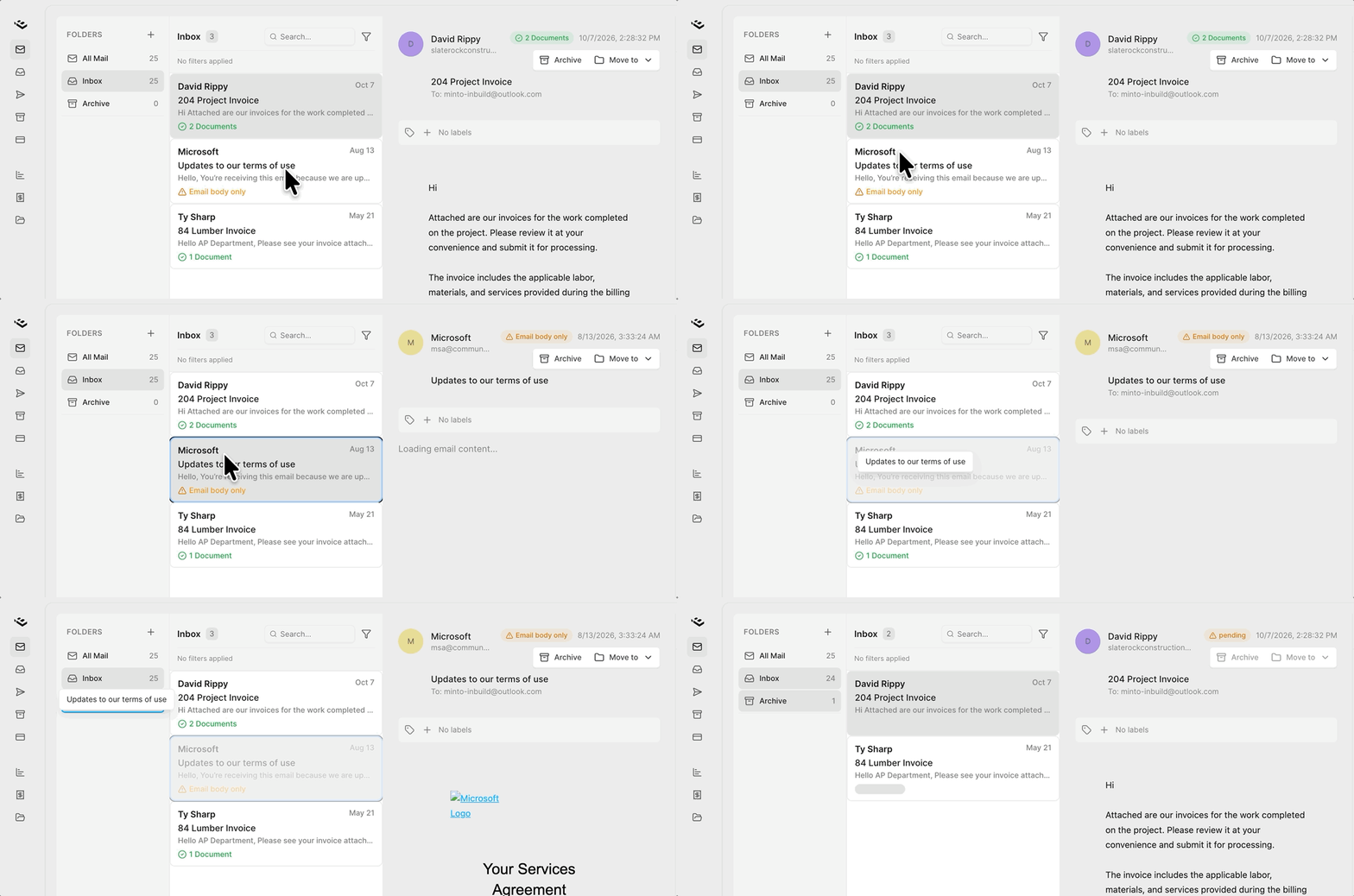
Drag and drop
In the email list, click and hold an email.
Drag it onto a folder in the sidebar. The folder highlights when you're over it.
Let go to drop it in.
On a touchscreen, press and hold the email for a moment before you drag.
Use the Move to menu
Click an email to open it.
In the top-right corner of the email, click Move to.
Choose Inbox, Archive, or one of your custom folders.
Add labels to emails
Labels are colored tags you can put on emails. Unlike folders, an email can have as many labels as you like. Your company has one set of labels, used for both invoices and All Mail emails.
Before you start: a company admin needs to turn on labels. Go to Settings > General > Labels and switch on Enable Labels. If labels are off, you won't see the label row on emails.
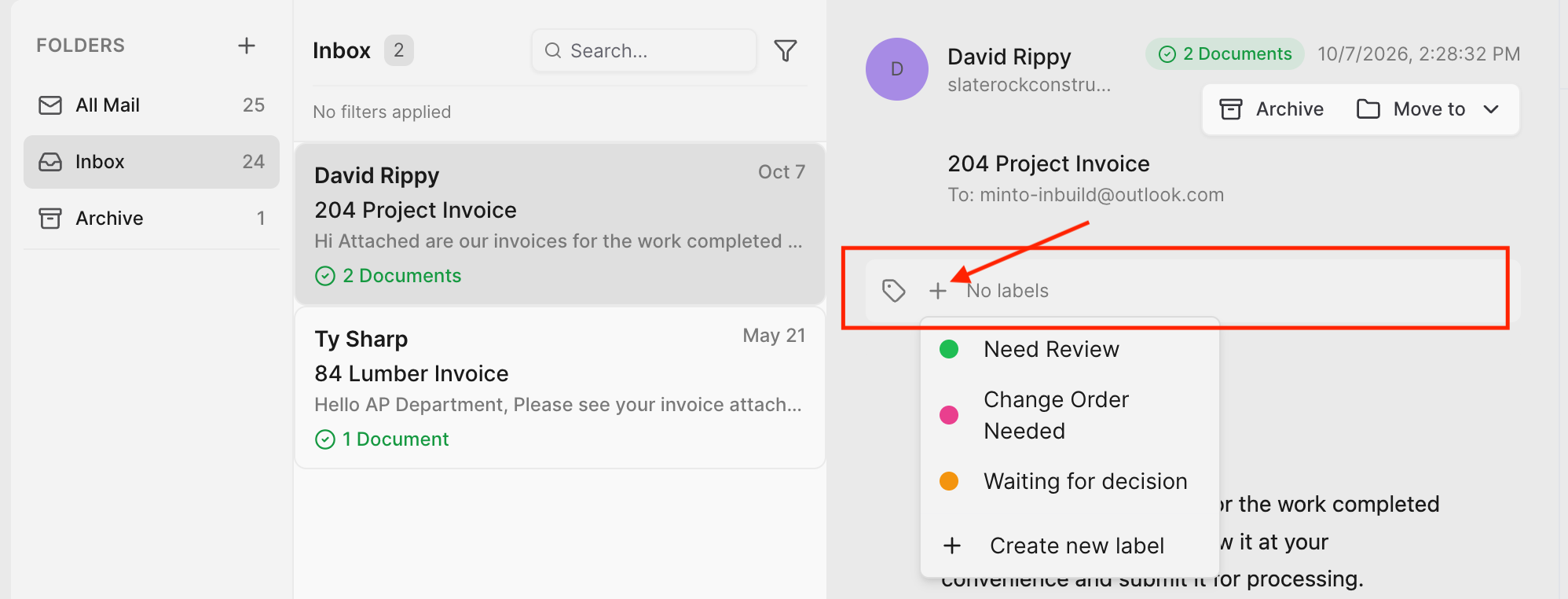
Add a label
Click an email to open it.
Find the label row (the tag icon) below the email header.
Click + and choose a label from the list.
Remove a label
Click the x on the label's badge in the label row.
Create a new label (admins only)
Open any email and click + in the label row.
Click Create new label.
Enter a Name, pick a color, and optionally add a description.
Save the label. It's now available on emails and invoices for your whole company.
Admins can also manage labels in Settings > General > Labels. Anyone with All Mail access can add or remove existing labels on emails.
Filter emails by label
Use the filter to see only emails with certain labels.
Click the filter icon next to the search box above the email list.
Under Labels, check one or more labels. Check No Label to include emails with no labels.
To clear the label filter, click All labels.
If you check more than one label, you'll see emails that have any of them. The filter only applies to the folder you're viewing, so choose All Mail in the sidebar to search every folder. The filter icon is highlighted while any filter is on.
Frequently asked questions
Does moving or archiving an email change it in Outlook?
No. Folders, archiving, and labels only affect how emails are organized in All Mail. The email stays where it is in your Outlook mailbox.
Will a filed email jump back to the Inbox when Outlook syncs?
No. Once you move an email, it stays in that folder until someone moves it again.
Can my teammates see my folders and labels?
Yes. Folders and labels are shared across your company. Everyone with All Mail access sees the same folders, the same filed emails, and the same labels.