All Mail View
Last updated: October 7, 2026
How to Use All Mail in inBuild
All Mail allows permitted users to view emails from your connected Outlook inbox and manually send attachments or email content into inBuild for processing.
All Mail Access is only available for accounts with an active Outlook connection.
Enable All Mail
Go to Settings → Integrations → Outlook and confirm your Outlook email shows as Connected.
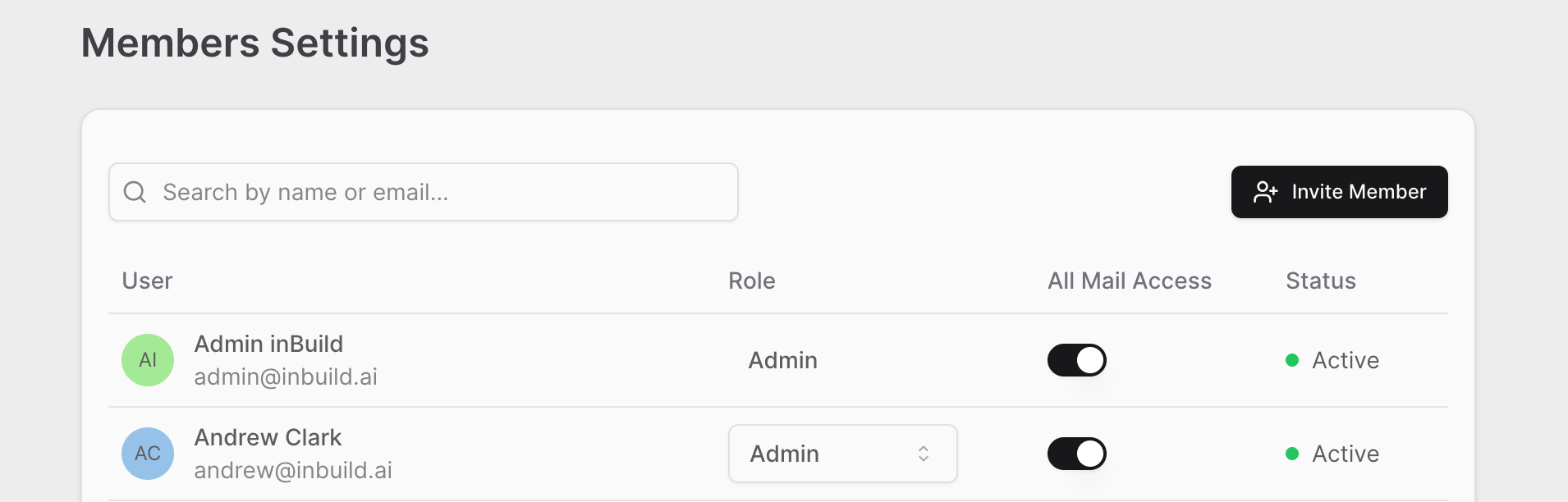
Go to Settings → Members.
Turn on All Mail Access for each user who should have access.
Once enabled, All Mail will appear in that user's left-hand navigation.
Process an Email or Attachment
You can track every email that comes into the connected Outlook account and take necessary action to process emails and attachments through inBuild.
Open All Mail.
Select the email you want to review.
The email body appears in the center, while available actions appear on the right.
For a PDF or other attachment, click + Convert next to the attachment.
inBuild will open the document and begin analyzing it as an invoice.
If the document has already been processed, you'll see a green document indicator and can click the invoice link to open it.
For emails without an attachment, inBuild will display Email body only. If the email itself contains information that should be processed, use Convert under Email Body.
All Mail is useful when an invoice reaches your connected inbox but was not automatically picked up by inBuild. You can find it and manually send it through without leaving inBuild.
Frequently Asked Questions
Why don’t I see All Mail in inBuild?
All Mail must be enabled for your user. Go to Settings → Members and turn on All Mail Access.
How do I manually process an invoice from All Mail?
Open the email, find the attachment, and click + Convert. inBuild will analyze the document and create the invoice for processing.
Can I process an invoice if there’s no attachment?
Yes. If the invoice information is contained in the email itself, use Convert under Email Body to process the email content.