Commitment Change Orders
Last updated: August 19, 2026
Overview
inBuild can create commitment change orders in Procore without requiring you to re-enter the change order or its line items. You can use either of the following workflows:
Standalone change order: Upload a change-order document and review the details that inBuild extracts before syncing it to Procore.
Change order from a subcontractor invoice: Create a commitment change order when an invoice contains valid additional work that exceeds the selected commitment's schedule of values.
Both workflows support one-tier, non-ERP commitment change orders associated with an approved purchase order or work order/subcontract in Procore.
A Procore company admin must enable these workflows in inBuild. If the settings are unavailable, contact your company admin.
Enable Change Order Processing
Standalone Change Orders
The Enable change order processing setting allows users to upload standalone commitment change-order documents in the Inbox.
Navigate to Settings.
Select Procore.
Select Change Order Settings.
Toggle Enable change order processing on.
Select a value for Default change order status when syncing to Procore.
The available default statuses are:
Draft: The standalone change order is created as a draft in Procore.
Approved: The standalone change order is created as approved in Procore.
Enable Change Orders from Invoices
The Create commitment change orders from invoices setting allows a user to submit valid additional work on a subcontractor invoice as a new commitment change order.
Navigate to Settings.
Select Procore.
Select Invoice Settings.
Confirm that Enable invoice processing is on.
Confirm that Subcontractor invoices is on.
Toggle Create commitment change orders from invoices on.
Change orders created from invoices are approved directly in Procore. The default status under Change Order Settings applies only to standalone change-order uploads.
Process a Standalone Change Order
Upload a change-order document when the change order is not being created from a subcontractor invoice. inBuild analyzes the document and suggests the related project, vendor, parent commitment, accounting method, and budget codes.
Open the Inbox.
Click Add.
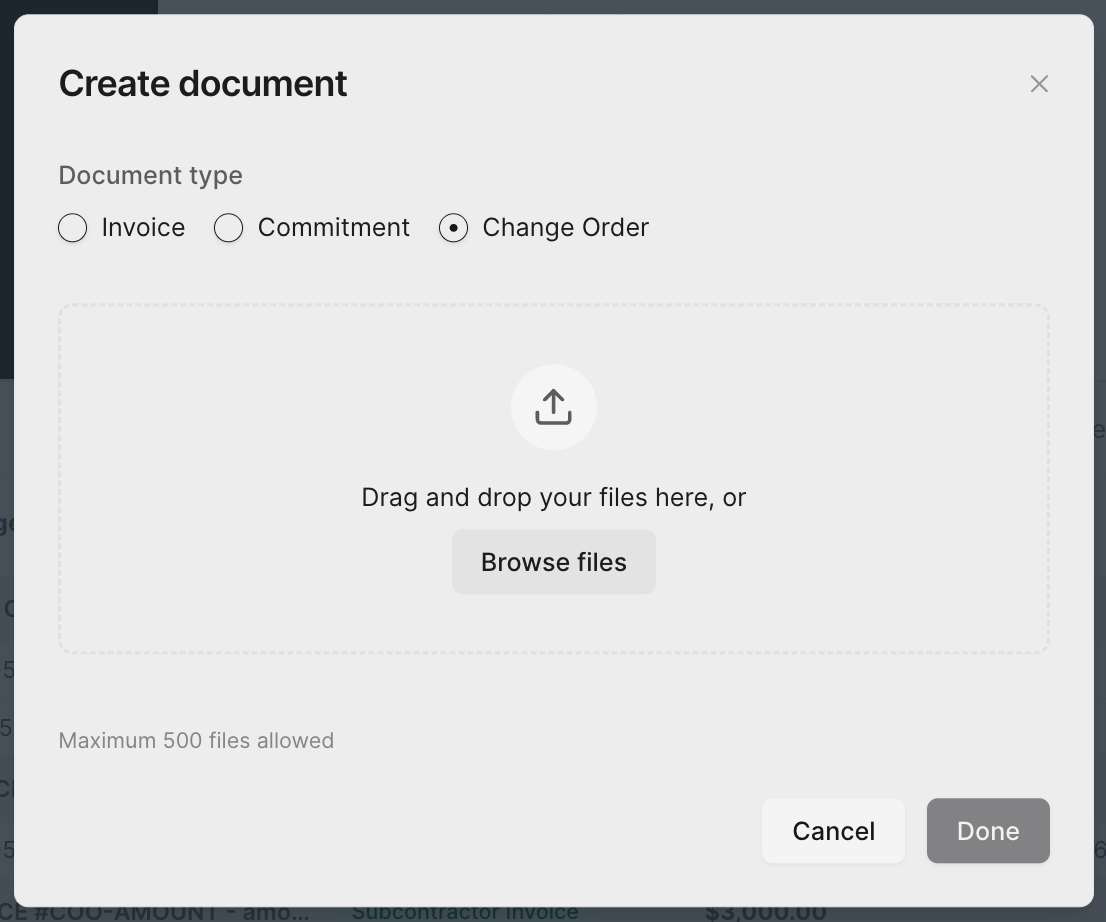
Select Change Order as the document type.
Upload the document by browsing for the file or dragging it into the upload area.
Click Add Document. inBuild will analyze the file.
Confirm the Project.
Review the Title.
Select the Approved parent commitment.
Confirm that Accounting matches the parent commitment.
Review each line's budget code, description, and value.
Click Sync to Procore.
For amount-based change orders, enter the value in This Period. For unit-based change orders, enter the quantity, unit cost, and unit of measure.
Create a Change Order from a Subcontractor Invoice
Use this workflow when a subcontractor invoice includes valid work that exceeds or is missing from the parent commitment's schedule of values. For example, the commitment may include six units while the invoice bills eight units.
The document must be classified as a Subcontractor Invoice and associated with one commitment before the change-order options appear.
Open the subcontractor invoice in the Inbox.
Confirm that the invoice is associated with the correct project, vendor, and commitment.
Review the discrepancies identified by inBuild.
Determine whether each discrepancy is valid additional work. Ask the vendor to correct the invoice when it is not valid.
Review the proposed lines under Additional work for invoice.
Update the budget code, description, quantity, unit cost, or This Period amount when needed.
Click Add Line Item to include other valid additional work.
Select a line's checkbox to remove that line when needed.
Click Submit. A confirmation window will appear.
Review the predicted amount warning and the change-order summary.
Click Proceed with Submission.
inBuild's suggestions require your review. A mismatch can indicate valid additional work, an incorrect invoice, or an incorrect commitment selection.
What Happens After Submission
inBuild completes the following steps in order:
Creates and approves the commitment change order in Procore.
Refreshes the commitment's schedule of values.
Adds the new change-order lines to the subcontractor invoice.
Bills the submitted values in the current period.
Applies the commitment's default retainage when applicable.
Continues syncing the invoice to Procore.
Verify the Change Order in Procore
Open the subcontractor invoice in Procore.
Review the new change-order lines on the invoice's schedule of values.
Open the parent purchase order or work order.
Select the Change Orders tab.
Confirm that the new change order has an Approved status and the expected amount.
Frequently Asked Questions
Why is Change Order missing from the Add menu?
Ask a Procore company admin to enable Enable change order processing under Settings → Procore → Change Order Settings. Also confirm that your inBuild role can edit commitments.
Why is the parent commitment missing?
Confirm that the commitment is approved in Procore and belongs to the selected project and vendor. inBuild only displays eligible purchase orders and work orders.
What does the AI Predicted Amount Mismatch warning mean?
The values entered on the invoice differ from the values inBuild extracted or from the selected commitment's schedule of values. Review the project, commitment, quantities, costs, and amounts before proceeding.
What status will the change order have in Procore?
A standalone change order uses the default status selected under Change Order Settings. A change order created from a subcontractor invoice is approved directly.
Can inBuild create a Procore Change Event for a change order?
Yes. A Procore company admin can enable Create Change Events for change orders under Change Order Settings. This option requires an authorized Procore user before inBuild can link the Change Event lines to the commitment change-order lines.