PDF vs. Email Body View
Last updated: February 5, 2026
Viewing the Invoice PDF vs. Email Body
When invoices are emailed into inBuild, you can quickly switch between viewing the attached invoice PDF and the original email body. This helps when needing to reference the email for project or cost-related information that doesn't show on the attachment.
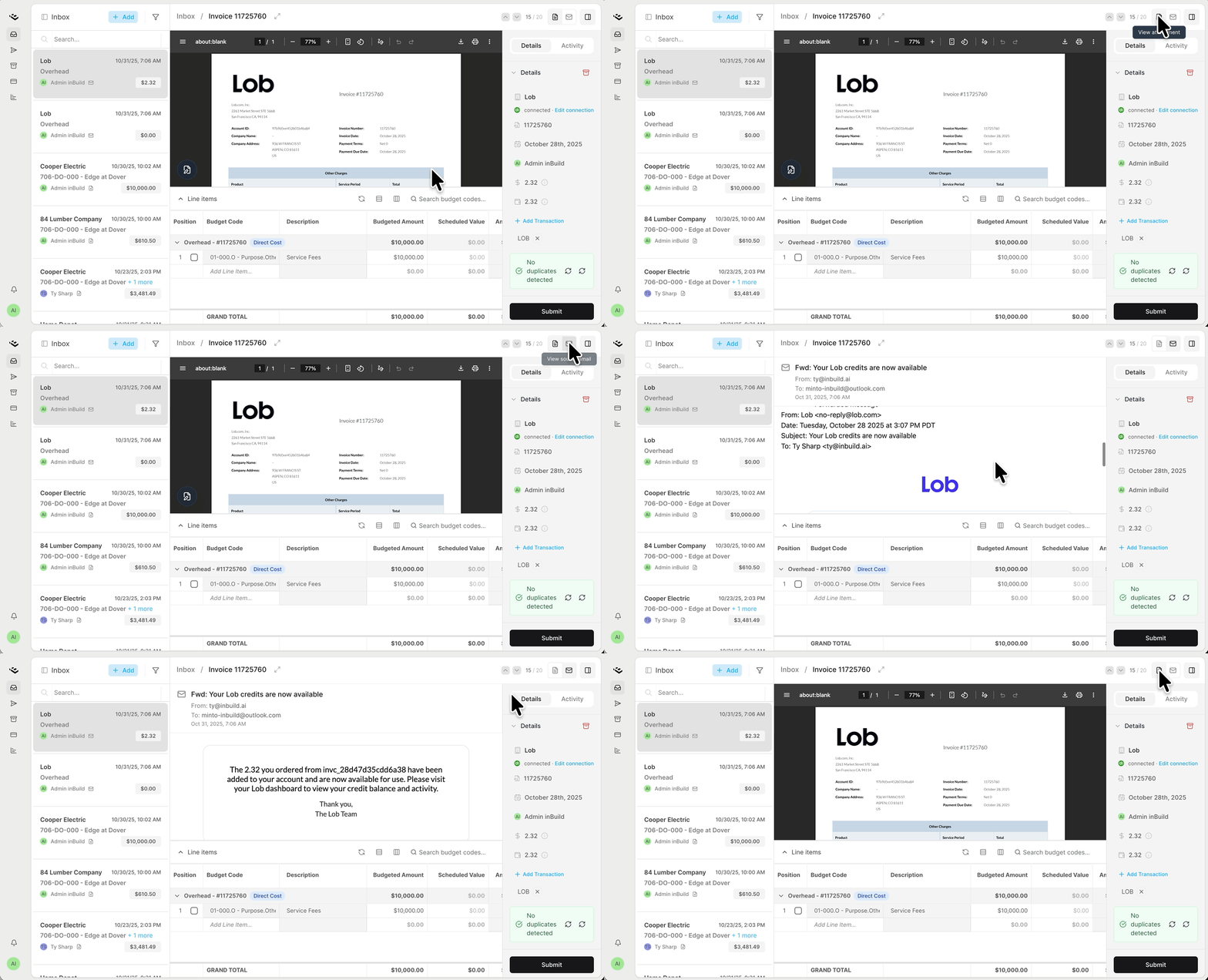
If you need to reference the email associated with an invoice, instead of opening Outlook, just toggle to view the email body.
Switch Between Invoice PDF and Email Body
View the Invoice Document (Default)
Open any invoice that was emailed into inBuild
By default, you'll be viewing the attachment (PDF)
This is the default view and shows the PDF invoice file
On the PDF view, you can edit the PDF pages similar to Adobe Acrobat. Click in the lower left-hand corner of the PDF to access the "Edit Document" tool
View the Email Body
While viewing the invoice, look to the upper right-hand corner
Click the Email icon
The panel will switch to display the original email body, including:
Email message text
Sender details
Any context the vendor included
Frequently Asked Questions
Why don’t I see the invoice PDF when I open an emailed invoice?
Invoices that do not include a PDF and only contain the email body will display the email content exclusively. In these cases, the PDF and Email options will not be available.