Use All Mail to train the AI to recognize invoices
Last updated: September 28, 2026
The All Mail view shows every email received by your connected inbox—including messages the AI did not convert into a document.
If an invoice attachment was missed, you can convert it manually. This correction also trains the AI to recognize similar invoice attachments in the future.
Understand the All Mail view
Select All Mail from the left navigation to see your messages.
Use Search or the filter icon to locate an email.
Select an email to view its contents.
The Actions panel displays separate options for the email body and its attachments.
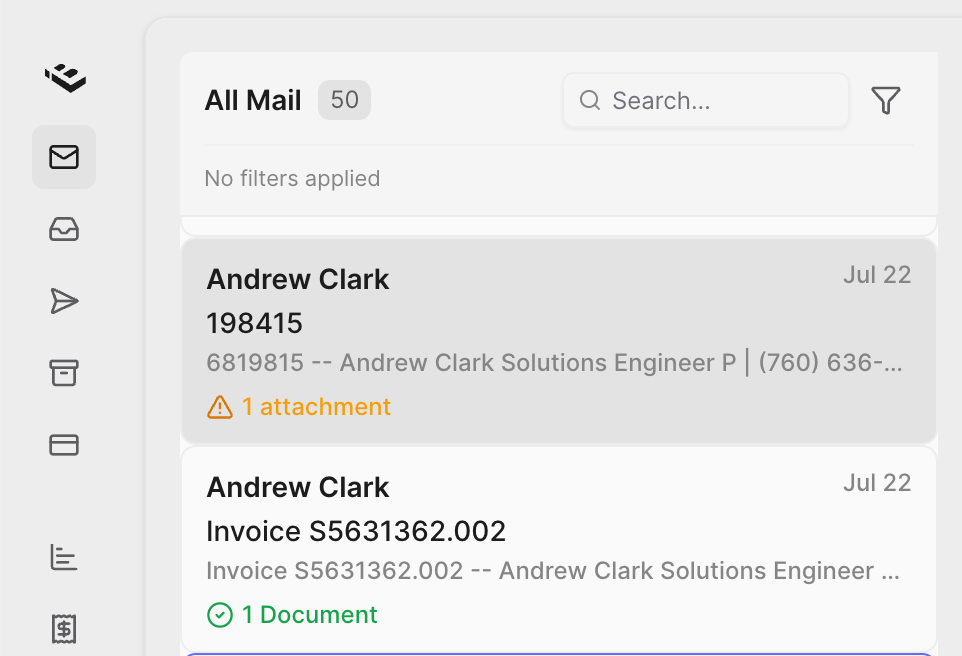
The status beneath each email helps you understand how it was processed:
Email body only means the message does not contain an attachment.
1 attachment means an attachment is available but has not been converted.
1 Document means the email has produced a document.
Convert an attachment into an invoice
Open All Mail.
Find and select the email containing the invoice.
In the Actions panel, locate the attachment.
If needed, select the attachment’s filename to preview it and confirm it is an invoice.
Select + Convert beside the attachment.
Choose Invoice from the document-type menu.
A confirmation appears when the conversion succeeds. The email’s status changes to 1 Document, and a green Invoice link appears beneath the attachment.
Be sure to use the Convert button beside the attachment—not the one under Email Body—when the invoice is an attached file.
Review the new invoice
Select Open Invoice in the confirmation message or select the green Invoice link.
The invoice opens in a new tab and begins processing. While the AI analyzes the file, you may see Processing, Analyzing file, or similar messages. Once processing finishes, review the extracted invoice details and make any necessary corrections.
How this trains the AI
Manually converting an attachment tells the AI that the file should have been treated as an invoice. This provides a training example that helps it recognize and automatically convert similar attachments in the future.
Only convert attachments that are genuine invoices. If the AI misses another invoice, repeat these steps to provide additional training.
Frequently Asked Questions
Why didn’t the AI automatically convert my attachment into an invoice?
The AI may not yet recognize a new sender or document format. Convert the attachment manually by selecting + Convert → Invoice. This provides a training example that helps the AI recognize similar attachments in the future.
Should I convert the email body or the attachment?
If the invoice is a PDF or another attached file, use + Convert beside the attachment. Use the Email Body conversion option only when the invoice information appears directly in the message and there is no invoice attachment.