Direct to QBO Bill
Last updated: August 11, 2026
inBuild’s Direct QBO Bills feature allows you to take an invoice from your inBuild Inbox, code it, and create a bill directly in QuickBooks Online without sending it through Procore.
Before you begin
Your company must have an active QuickBooks Online connection.
A company admin must enable Direct QBO Bills.
You must have manager or administrator access to invoice processing to create or edit a QBO bill.
Vendors, accounts, products/services, customers, and classes come from QuickBooks. Create missing options in QuickBooks first, then return to inBuild.
Enable Direct QBO Bills
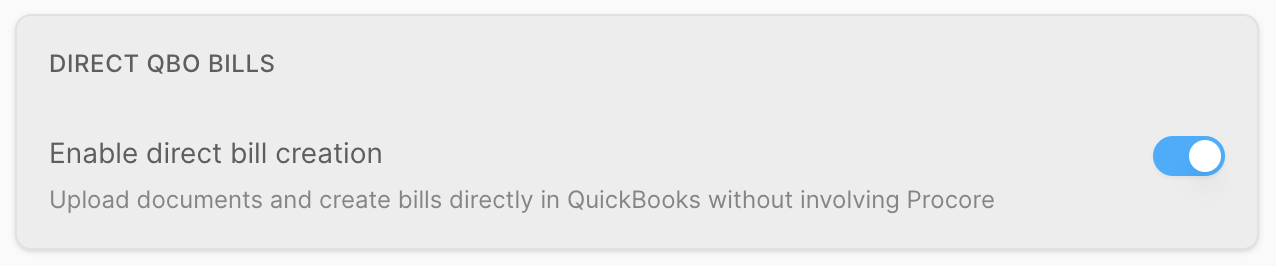
Once enabled, invoices can be converted to a QBO Bill inside the Inbox from either direct upload or switching an existing invoices Document Type.
Go to Settings → Accounting Integrations.
Find your connected QuickBooks Online account and click Settings.
Scroll to Direct QBO Bills.
Turn on Enable direct bill creation.
Convert an Invoice to a QBO Bill
If you have an existing invoice in your inbox that has either come in via email, already been uploaded, or submitted via the inBuild Pro mobile app, then follow these steps to switch the Document Type from Invoice to QBO Bill.
Open the invoice from your Inbox.
Click the Document Type currently set to Invoice.
Switch to QBO Bill.
Select the correct QBO Vendor and begin coding in the line items
Vendors, payment methods, account codes, and customers/projects all pull directly from QBO. There is no mapping or re-syncing needed.
Code the Bill
The QBO Bill line-item table allows you to enter line items with the following information:
Account — Select the appropriate QuickBooks category/account, such as Contract labor.
Customer / Project — Select a QuickBooks customer or project when applicable.
Billable — Mark the cost as billable if needed.
Class — Assign a QuickBooks class when applicable.
Description and Amount — Confirm the information that will be sent to QuickBooks.
Consolidating line items
If the invoice contains many extracted line items but you only want to send one summarized line to QuickBooks, select the existing lines and delete them, then create a new summarized line.
Bulk-deleting line items cannot be undone, so only do this when you intentionally want to consolidate the invoice.
Frequently Asked Questions
Do I need to set up an Overhead project in Procore to process direct to QBO Bills?
No. Direct QBO Bills lets you create and sync a bill directly from inBuild to QuickBooks Online without sending it through Procore.
Can I code one invoice to multiple customers/projects in QBO?
Yes, you can create as many line items as you need for QBO Bills, and for each line item, the customer/project can be different, allowing you to split the bill.
Can I process part of an invoice to a Procore project and the other half directly to a QBO Bill?
No, the QBO Bill option only allows you to sync to QuickBooks Online and bypass Procore entirely. You would need to upload the invoice twice to sync part of the invoice to Procore and then process the other part as a QBO Bill.